Recent product updates
The latest Picrowd releases, improvements, and fixes.
Oct 10
Picrowd, in your language.
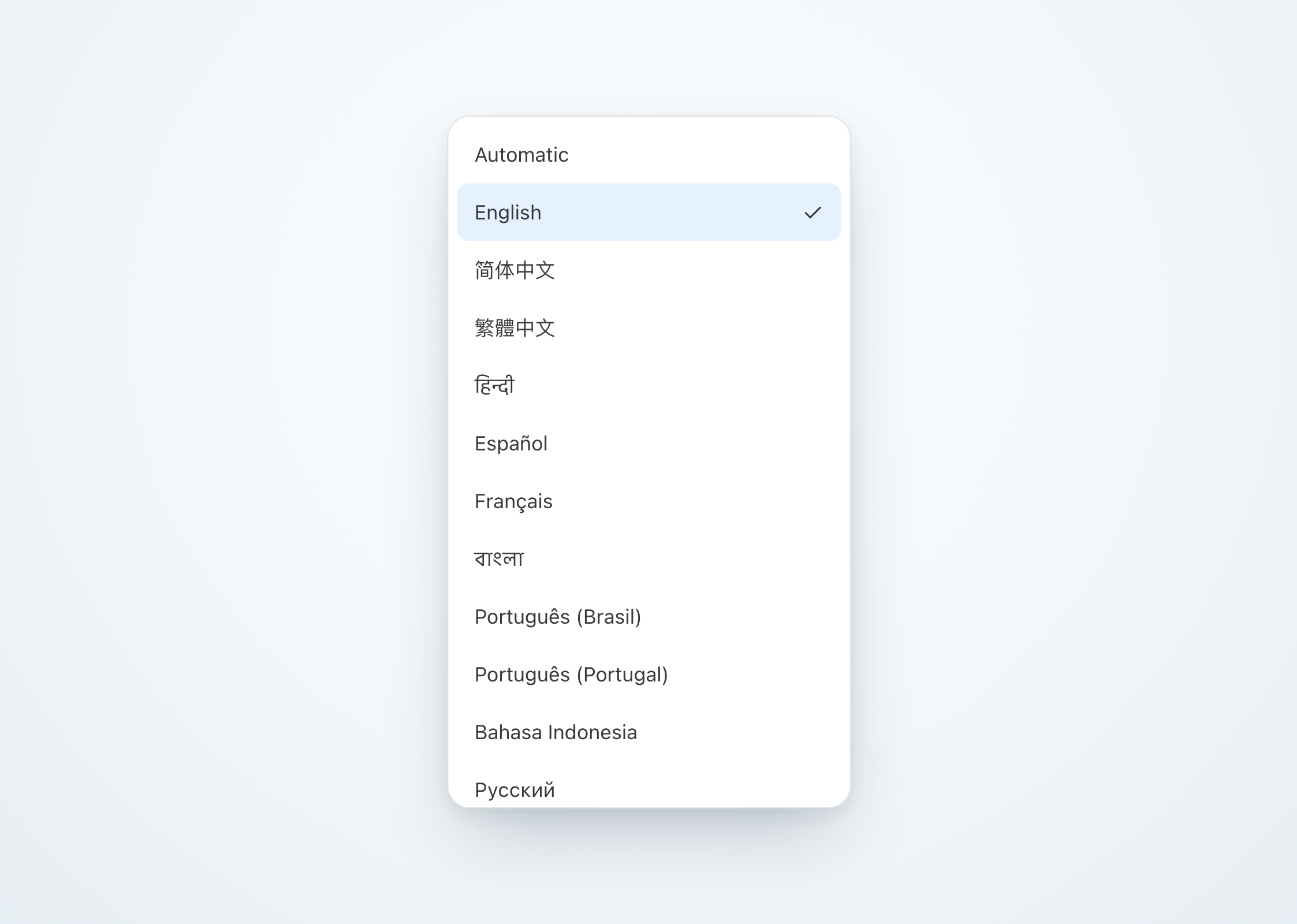
Choose from 28 language options in the web app, including regional and script variants. Workspaces, settings, sharing controls, guided tours, and built-in plugin descriptions now follow your preferred language, along with notification captions and service emails. Use the globe on the website or open Settings → General to choose. Prefer automatic selection? Picrowd can follow your browser’s language. Your choice is saved to your account, while your records, notes, and conversations stay exactly as written.
Find the right person faster.
The workspace search now works with project members and people who have access to individual records. Type part of a name or email address to narrow the list, see how many people match, and clear the search to bring everyone back. Members and Record Access lists also expand with the page, giving larger teams more room without a separate scroll area inside each list.
Oct 2
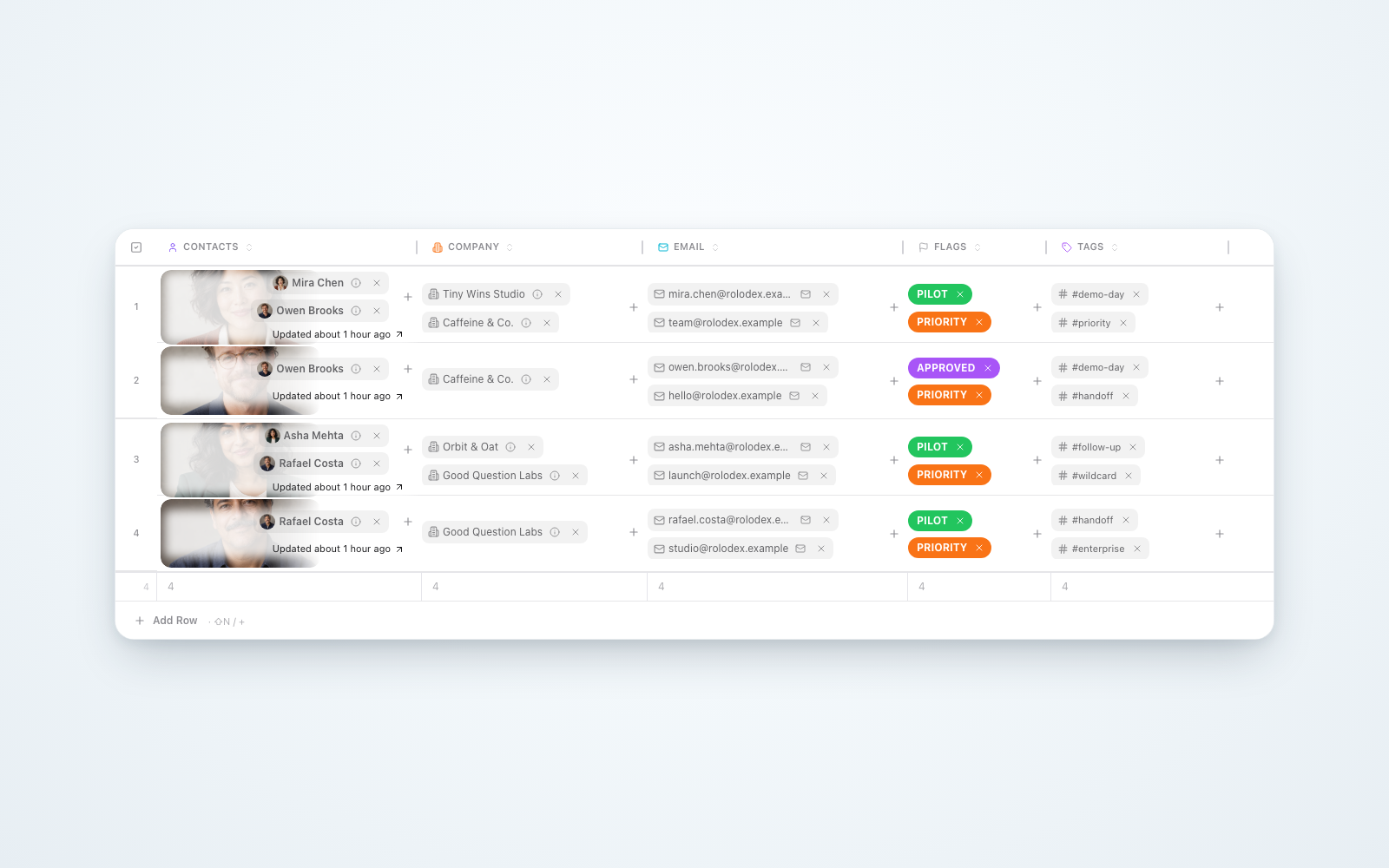
Multiple values per cell
Add several contacts, companies, email addresses, phone numbers, web links, flags, or tags to the same cell. Use the familiar + button to add another, edit values in place, and remove individual items with a quick X. Removed the wrong one? Undo brings it back, including files. Pills fit your column width in Compact, Normal, and Enriched views, with a +N indicator for anything tucked away. Widen the column to reveal more. Sorting and grouping follow the first item, so your table stays predictable.
Formatted text composer
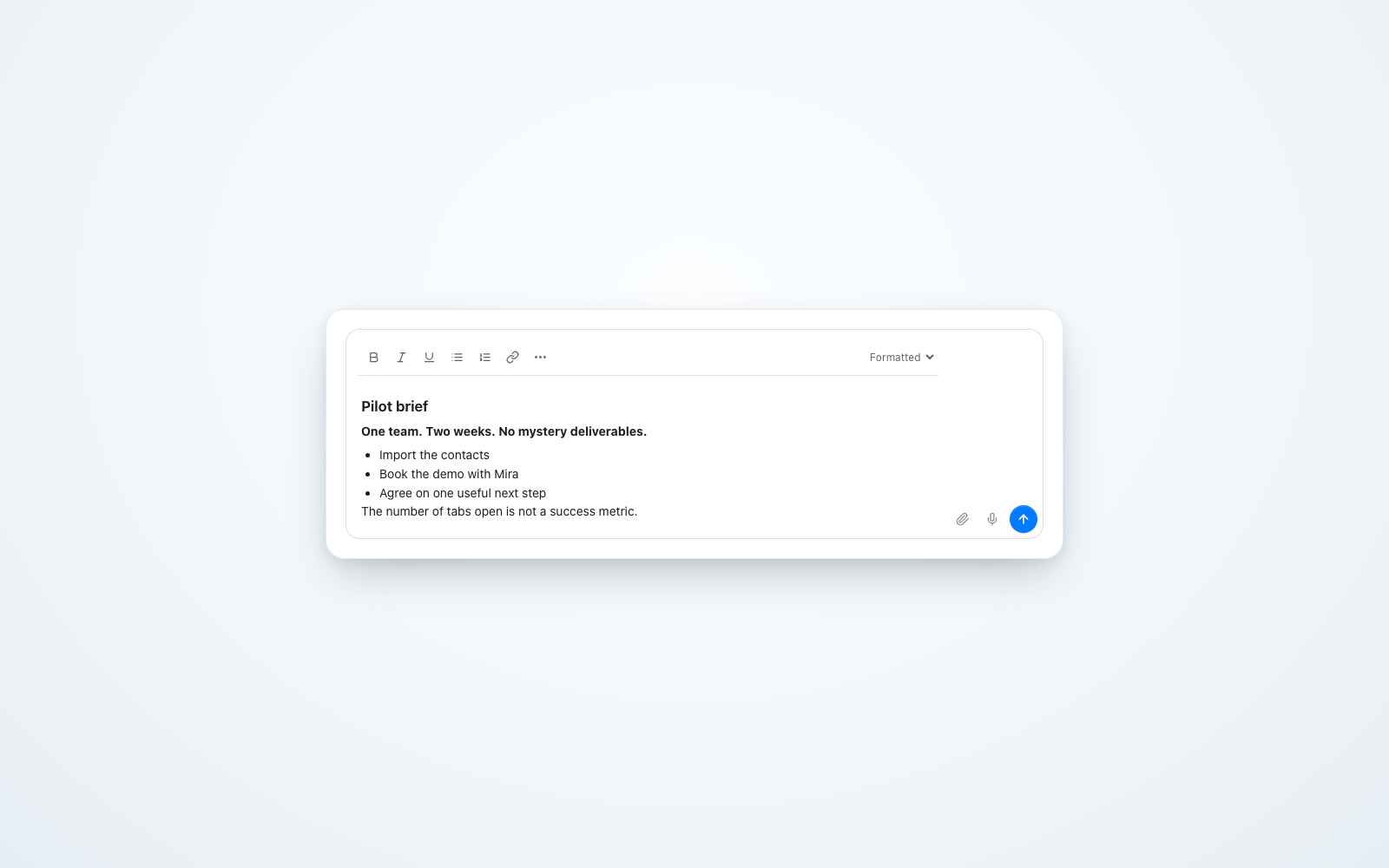
Format notes, replies, Board posts, and AI messages directly in the composer. Add bold text, lists, checklists, links, and more without typing formatting symbols yourself. Prefer Markdown? Switch views and keep working on the same draft. Pasting formatted text keeps its useful structure, and you can choose whether Enter sends your message or starts a new line. The existing toolbar for formatting selected text in published notes is still available as an optional setting.
Notes-first record view
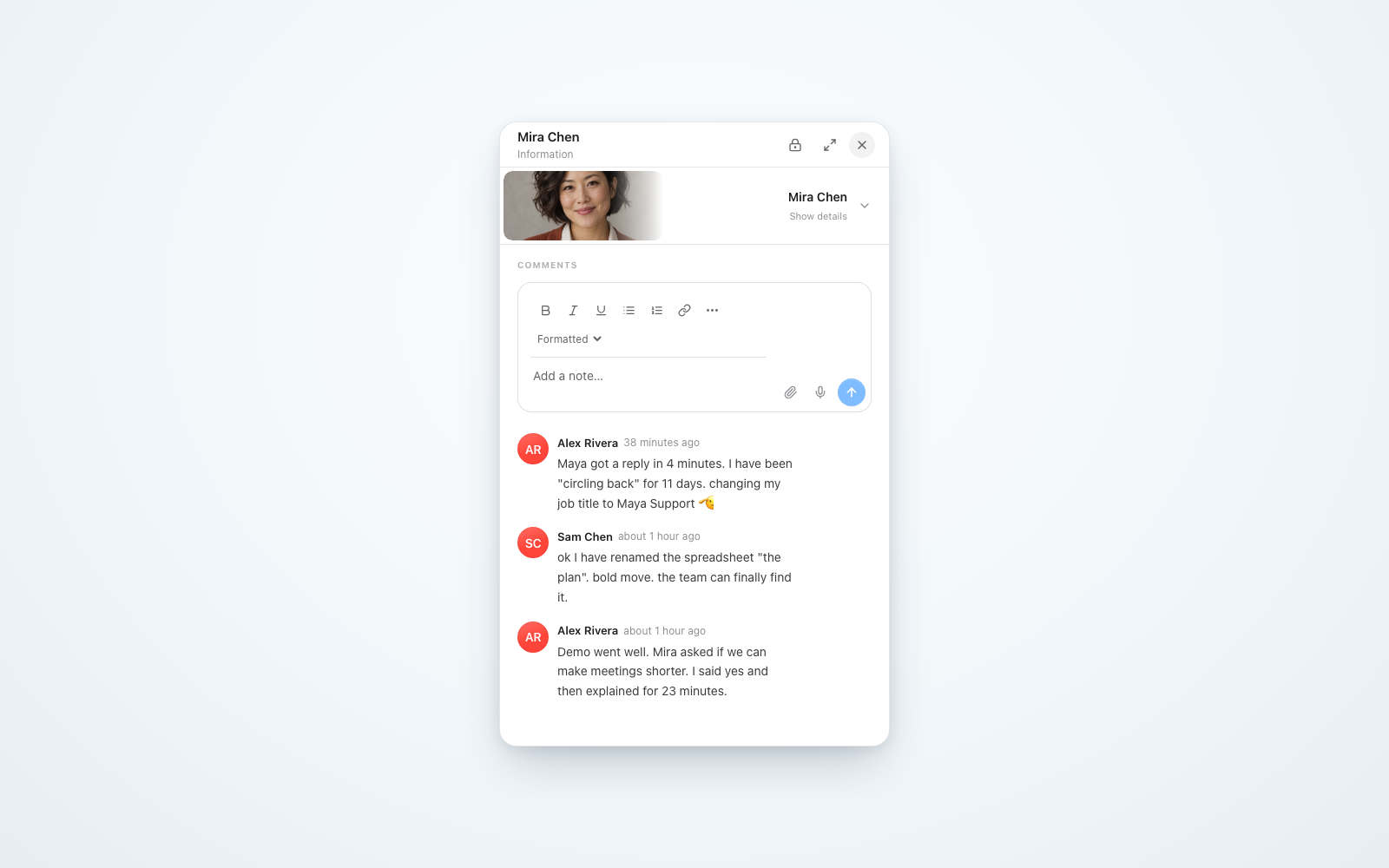
Turn on Open records with notes first to fold the header and details into a small strip, leaving more room for your team’s messages. The strip keeps a glimpse of the record’s cover image, and everything unfolds whenever you need it. Your preference follows your account across devices and is on by default for new users. It applies to side panels and phone cards. Full desktop and tablet cards keep their details visible.
Named pings
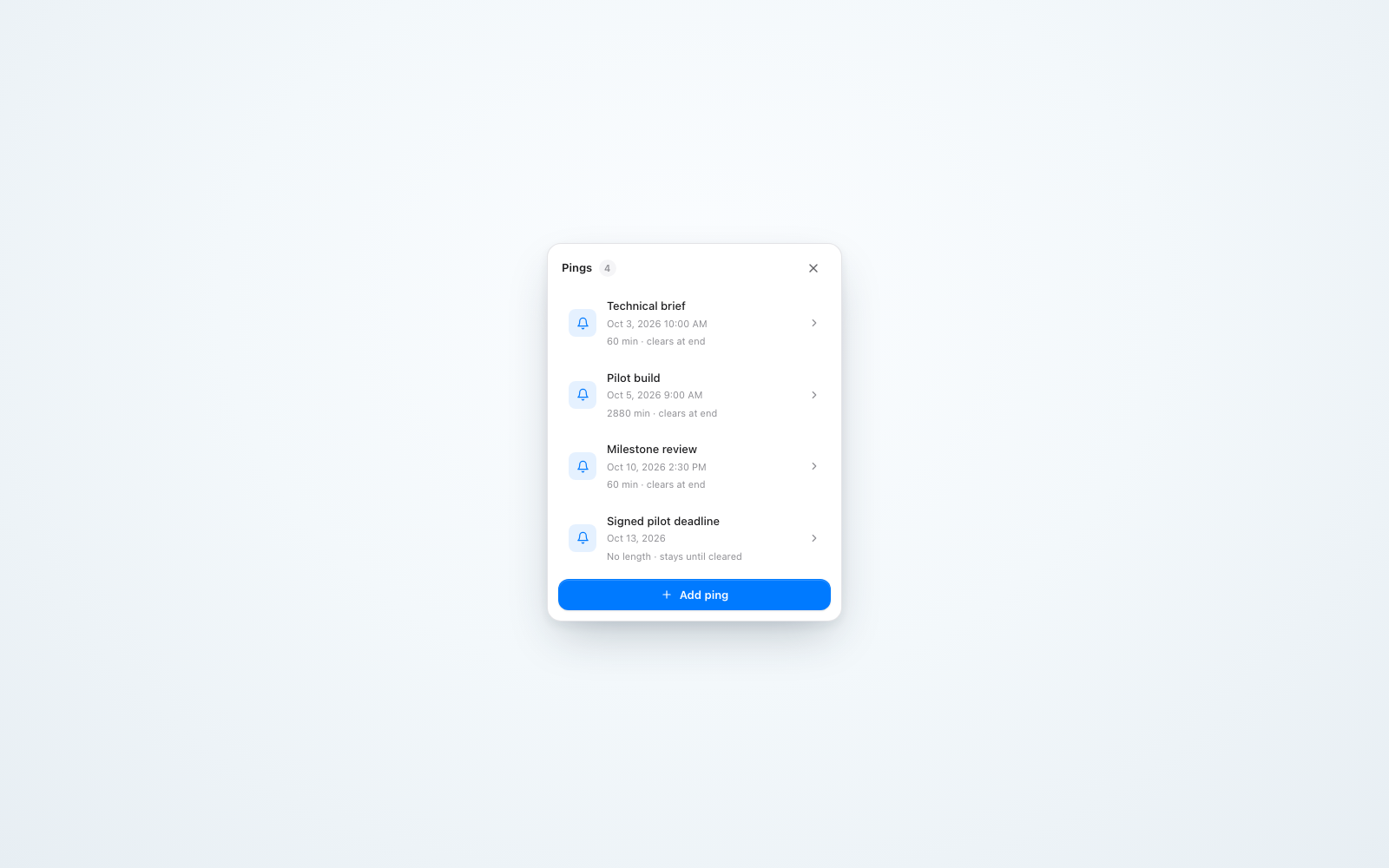
“First draft,” “Client review,” “Launch day.” Pings can now have their own names, making reminders easier to recognize in your table, Calendar, and Timelines. Give each ping a different label, or leave it empty to keep the familiar date display. Names are also supported through the API.
Sep 28
Picrowd, now in your pocket.
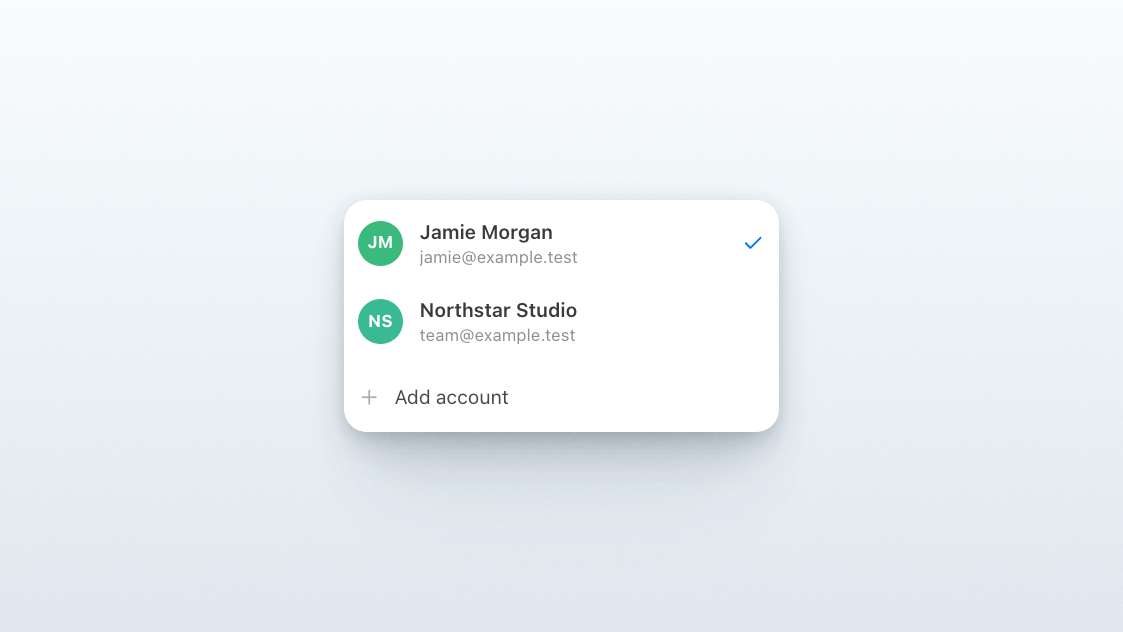
Meet the Picrowd apps for iOS and Android. Android 1.0 is available now from our website for phones and tablets. The iPhone and iPad app has been submitted to Apple and is coming to the App Store after approval. Sign in to your existing account and bring your projects, people, and ideas with you.
Sep 26
Switch accounts without signing out.
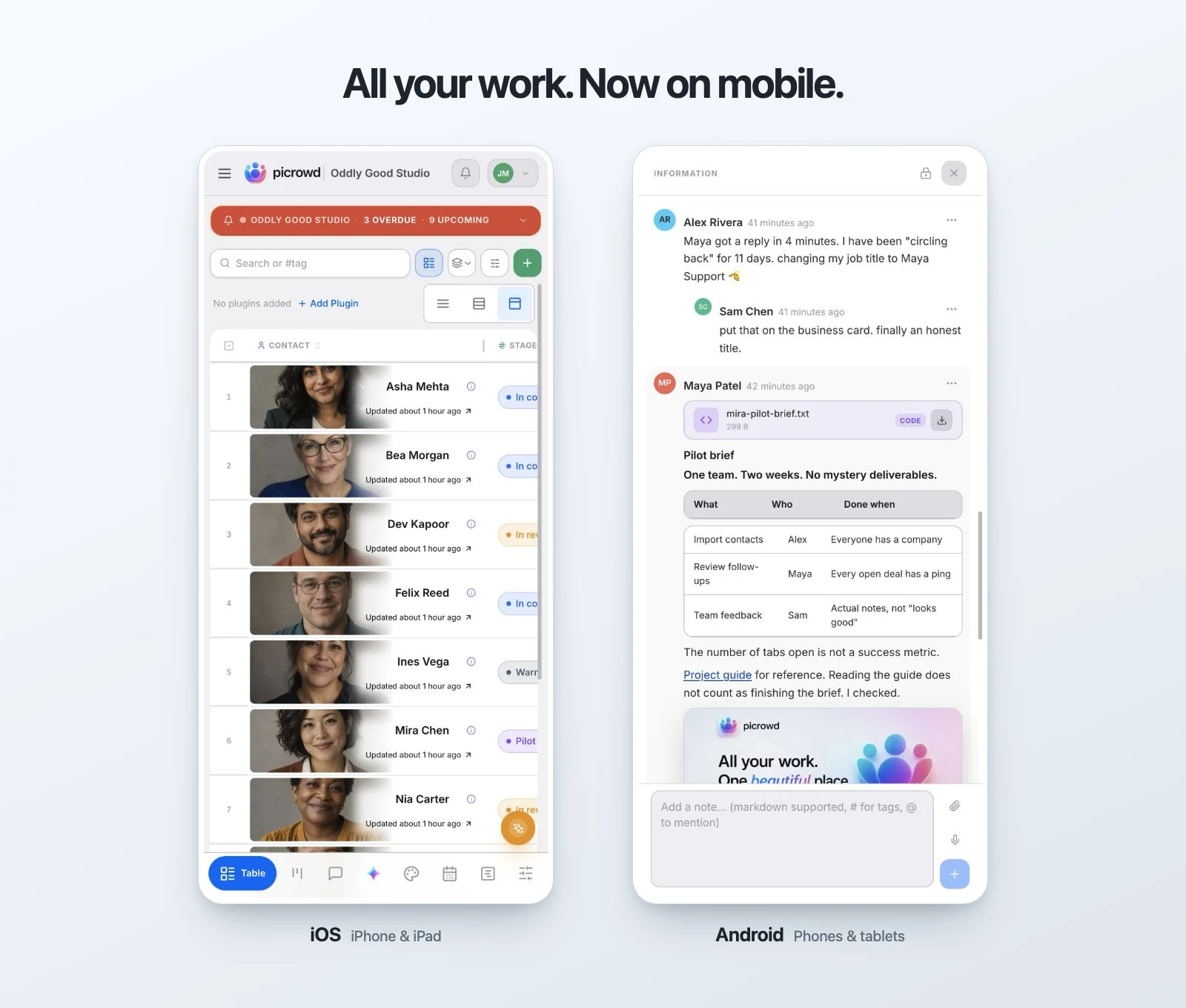
Keep your personal and studio accounts together in Picrowd. Open your profile menu, choose Add account, and switch whenever you need. Each account keeps its own projects, last workspace, and unfinished notes, so you can pick up where you left off. Different browser tabs or desktop windows can use different accounts at the same time. When you sign out from Settings → Account, only that account is signed out, and Picrowd switches to your most recently used remaining account.
More room for work on your phone.
Timelines now gives more of your phone screen to the schedule, with compact controls and more room to see your records. Moving between projects is faster, workspace scrolling is smoother, and the bottom navigation fits the screen more neatly. Images, videos, files, and link previews fit narrow screens better, and PDFs open in a viewer inside Picrowd. Long-press a project to open its actions, and type in fields without the page unexpectedly zooming in.
Give each record the right access.
Share a project with someone as a viewer, then give them editor access to just the records they need to work on. Or do the reverse: let a project editor view certain records without changing them. A record-specific role takes priority for that record, while the rest of the project keeps its existing permissions. Column visibility follows the stricter rule: a column must be allowed by both the project and record sharing settings to be visible. Sharing a record cannot reveal columns hidden by project access.
Sep 18
Meet Progress, a checklist that adds up.
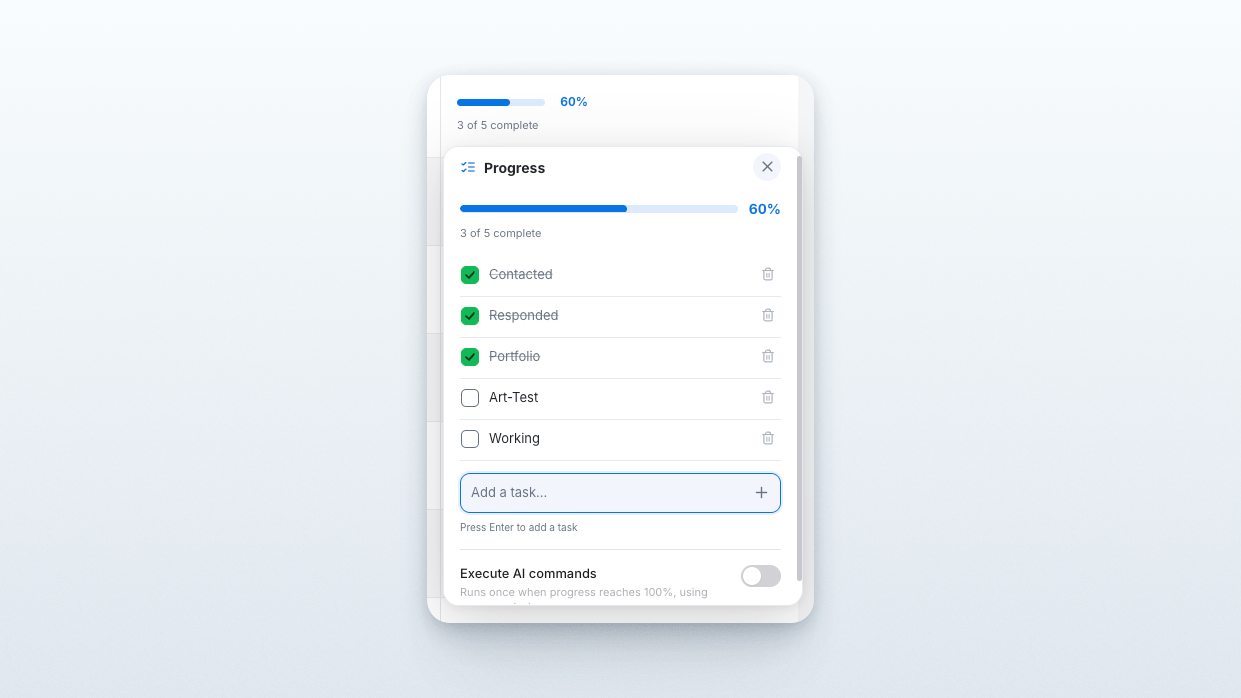
Add a Progress column and give every record its own checklist. Type a task and press Enter to add it, then check things off as the work gets done. The progress bar updates automatically from the number of completed tasks, fills the width of its table cell, and turns bright green when everything is complete. Click the bar to open a small checklist editor, or work from the record's info card. It works in Compact, Normal, and Enriched views, with colors made for both light and dark themes.
Sep 16
Give your records a richer table view.
Meet Enriched, a new way to browse your table. Record cover images fill almost the full row height and fade gently behind the title, giving you larger visuals and more room for text. Records without an image get a matching placeholder, keeping everything aligned. All 18 column types get a richer presentation, from readable note previews and file thumbnails to clearer values, tags, and status labels, while keeping the table structure you already use.
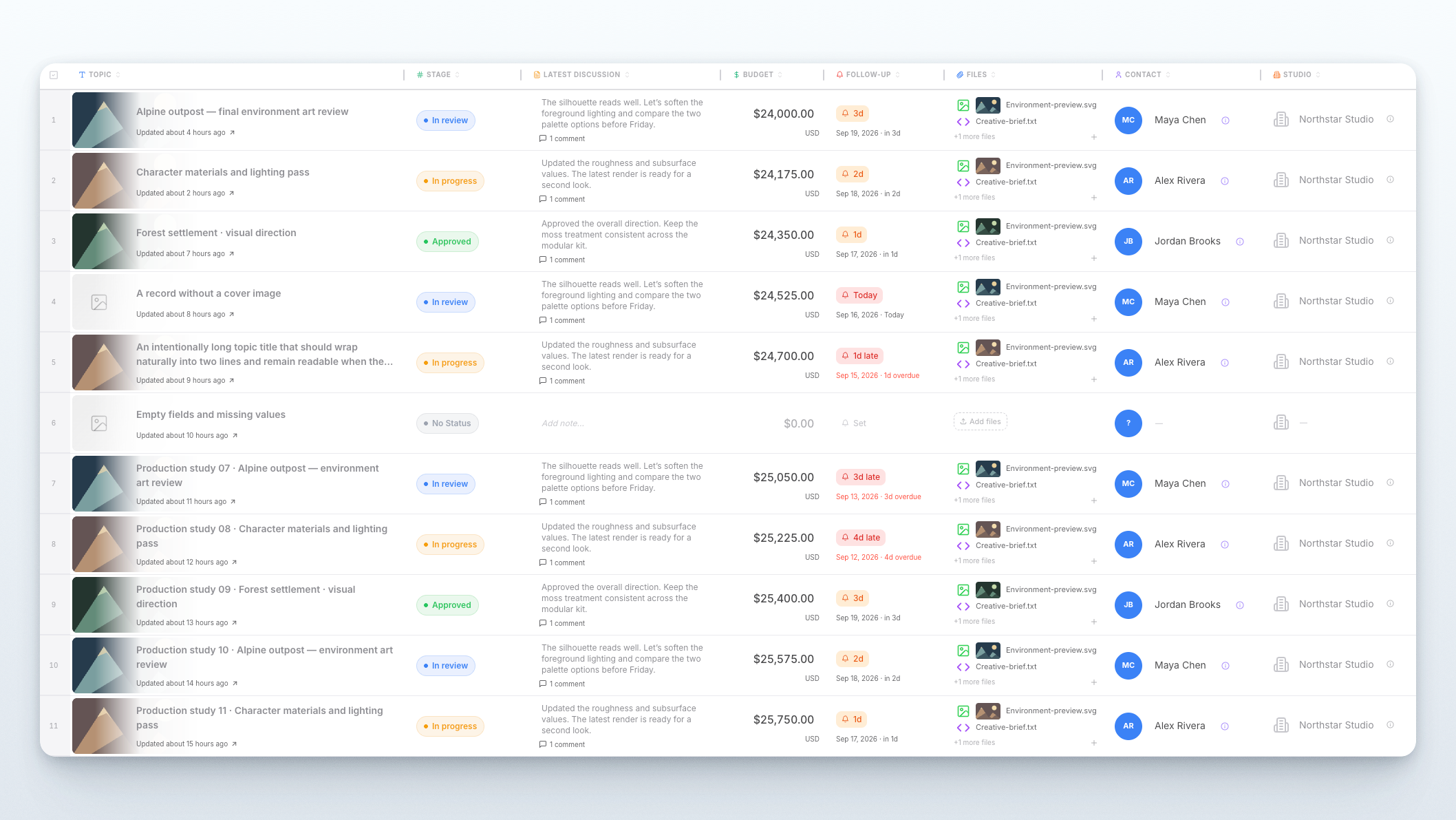
A row style for every project.
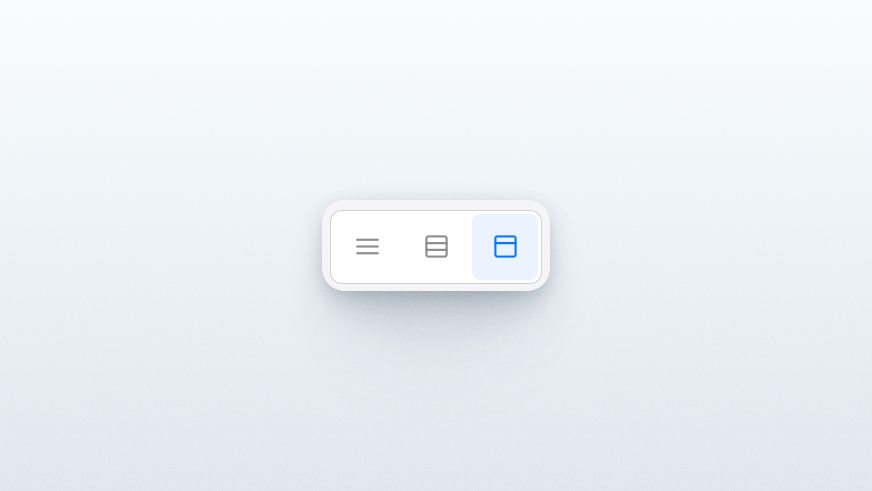
Switch between Compact, Normal, and Enriched using the buttons beside your plugins. Picrowd remembers your choice for each project and your account, and includes it in saved views. Open Settings → Table → Row appearance to apply a default across all your projects, then adjust any project individually whenever you need. On iPhone and iPad, the same controls use compact icons with room to tap.
Give Picrowd AI a file to work with.
Attach supported images, PDFs, Word documents, or text files and ask Picrowd AI to read them, summarize the contents, or use the information in a task. Paste images and files straight into AI chat, or attach them to messages when mentioning Picrowd AI in record notes, Boards, and Whiteboard comments. Follow-up questions can refer back to the files you are discussing, so you do not have to explain the same material again.
Sign in your way, and pick up where you were invited.
Open an invitation or shared link and choose Google, GitHub, Apple, or a sign-in link sent to your personal email. After signing in, Picrowd brings you back to the intended project or record. Account switching and recovery from expired or interrupted sign-in links are clearer, too, making it easier to join the right work with the right account.
Download videos straight from their preview.
Video attachments now have working download controls in both compact video cards and the full-screen viewer. Use the download button to save a copy to your device, whether you are browsing project files or watching a clip, without having to hunt for the original attachment.
Sep 5
Meet Calendar, your new planning workspace.
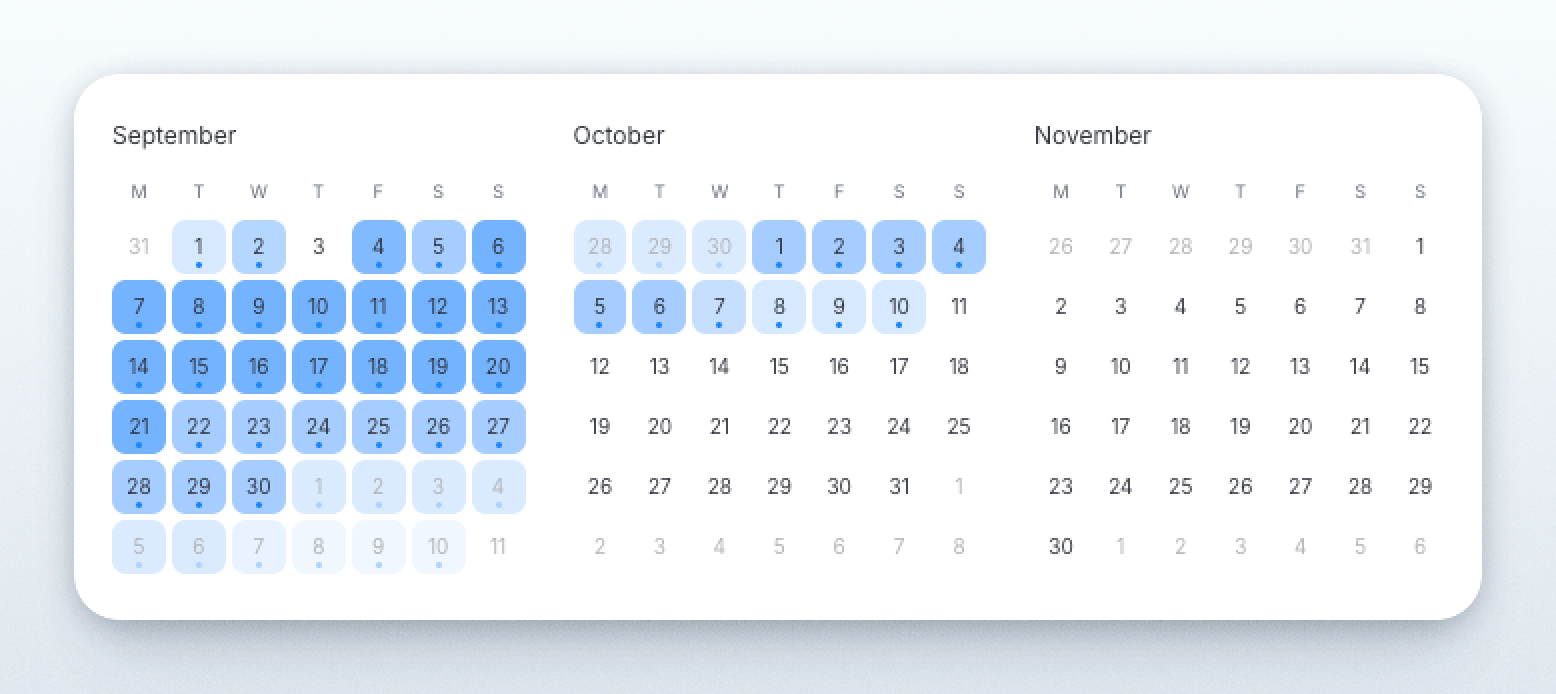
Calendar is a dedicated project workspace with day, week, month, and year views over your existing records. See overlapping pings, choose date columns and a timezone, and create reminders for one or several records. Search, grouping, and record filters work from the familiar project toolbar; display settings keep ping status, group colors, and color codes together. Drag events with a visible landing outline. Calendar follows the same record and field permissions as Table.
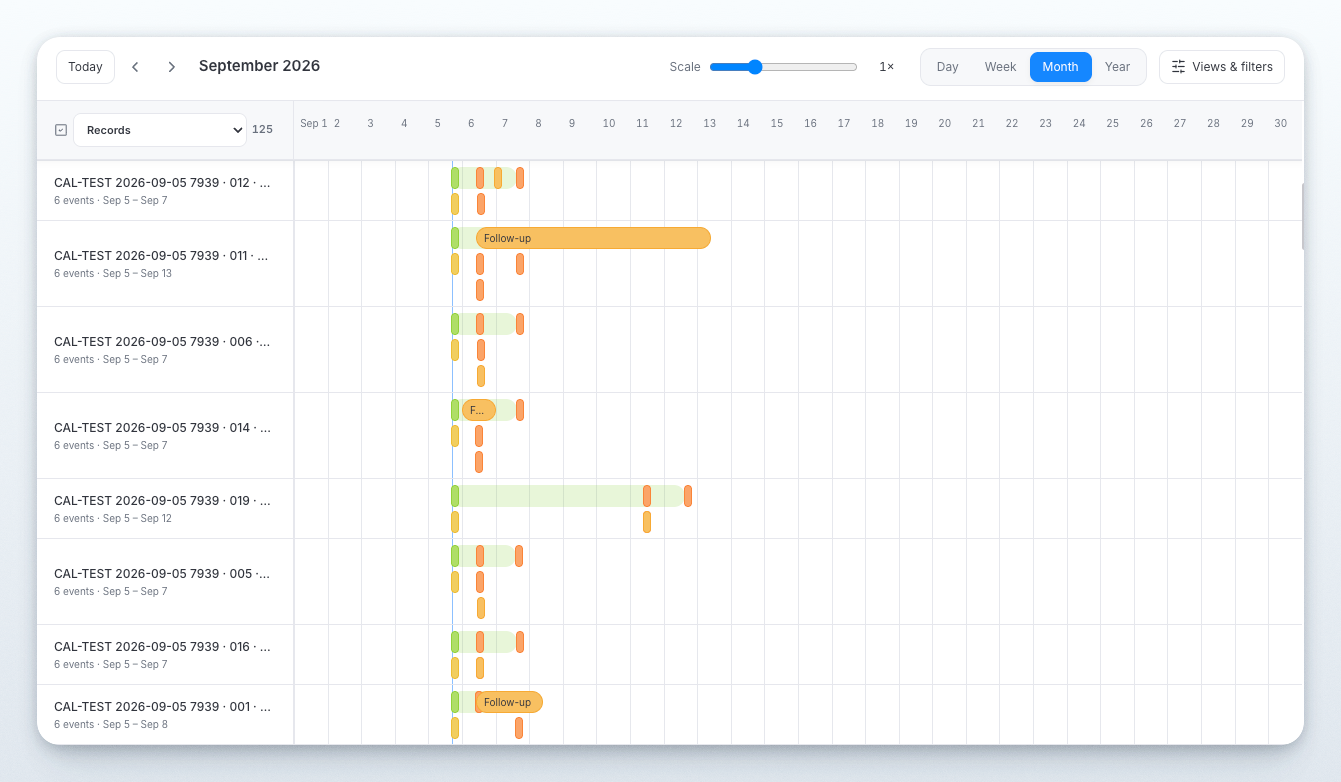
Meet Timelines, a workspace for the bigger picture.
Timelines is a separate workspace for record-by-record planning. Group and collapse rows like Table, choose a table-formatted label column, resize it, and use familiar record and bulk actions. Scale from one-third to three times the selected period, then scroll freely in either direction. Cmd-scroll on Mac or Ctrl-scroll on Windows changes scale. Drag pings with live connections, click a ping to edit it, or double-click empty row space to open its record. Calendar and Timeline settings are included when you save or update a workspace view profile.
More flexible pings, from first reminder to follow-up.
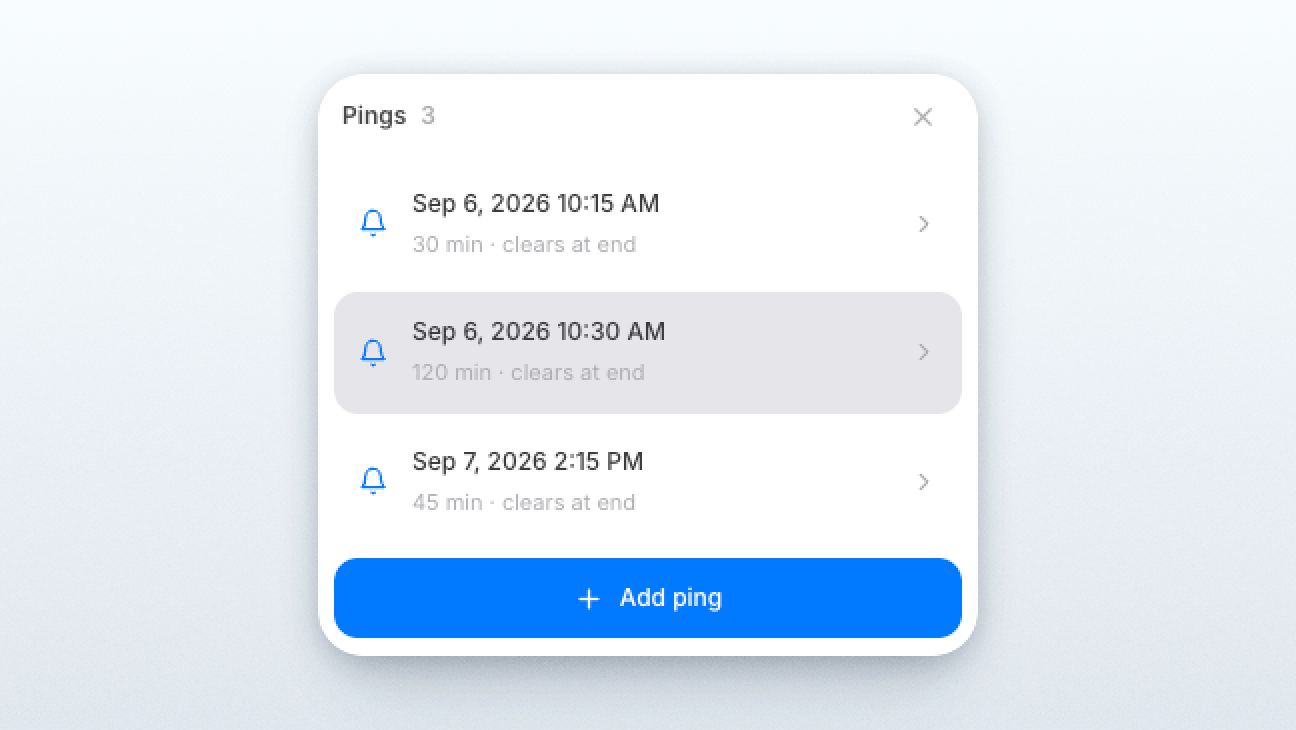
Use multiple ping columns and several reminders in one cell. Each ping has its own optional time, length, and AI-command schedule. Lengths support minutes, hours, days, weeks, and 30-day months; a ping clears when its length ends, while one without a length stays overdue until you act. Edit the exact ping you click, then use Back to pings to switch reminders without saving a draft. Saving or clearing returns to the updated list. The API and MCP address individual ping IDs without replacing their neighbors.
Aug 28
Connect Claude, Codex, and other agents safely.
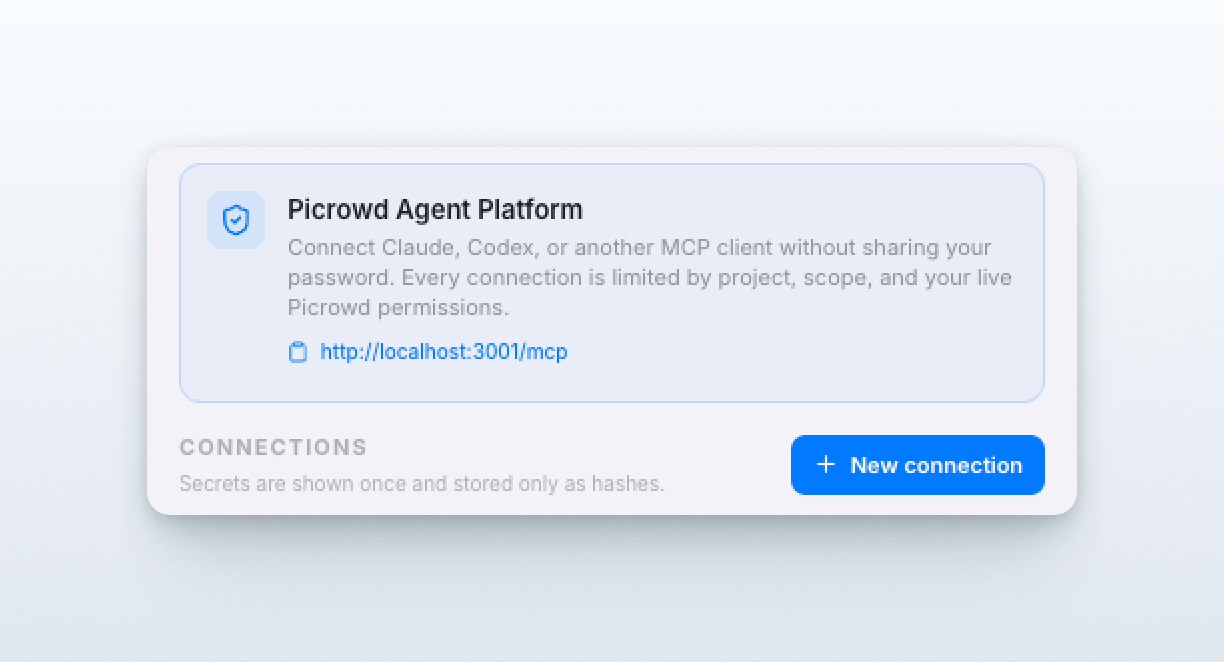
Picrowd now has its own MCP connection for compatible AI clients. Open Settings → MCP, choose exactly which projects and capabilities to share, set an expiration, and revoke access whenever you want. Agents always follow your current Picrowd permissions, sensitive credentials are shown only once and stored only as hashes, and every action is recorded in a redacted activity log. Record changes are prepared for review before they are committed, so an agent can help with real work without receiving open-ended access to your workspace. A complete setup and security guide is available in MCP Docs.
Aug 21
Zoom into every detail.
The image viewer now lets you zoom with the mouse wheel, keyboard, or on-screen controls, then click and drag to move around the image. Zooming in with the mouse follows your cursor, keeping the detail you are looking at in focus, while zooming out brings the image back to the center. Every image opens centered at its original zoom level, filenames appear when you hover, and mouse-wheel zoom can be turned off in Settings.
Aug 10
Every file and link, finally in one place.
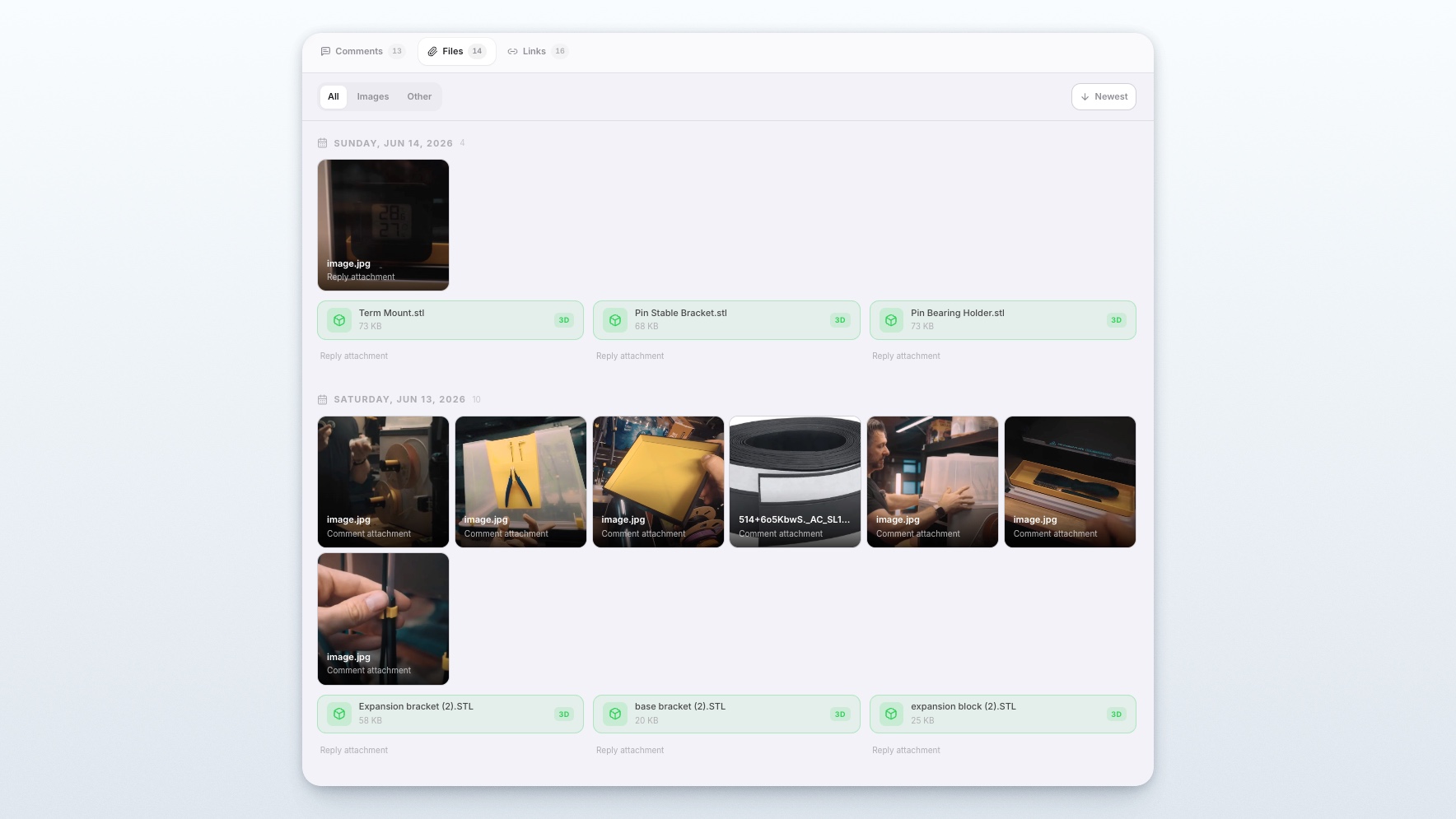
Full info cards, Boards, and Picrowd AI now have dedicated Files and Links tabs. Browse attachments by day, switch between file types, sort newest or oldest, search by filename, file type, website, or date, and download anything directly. Images open in the lightbox, while audio, video, PDFs, documents, and 3D files keep the same familiar cards used throughout Picrowd. Links from outside Picrowd are gathered automatically and can be sorted by date or website.
Lock important records against changes.
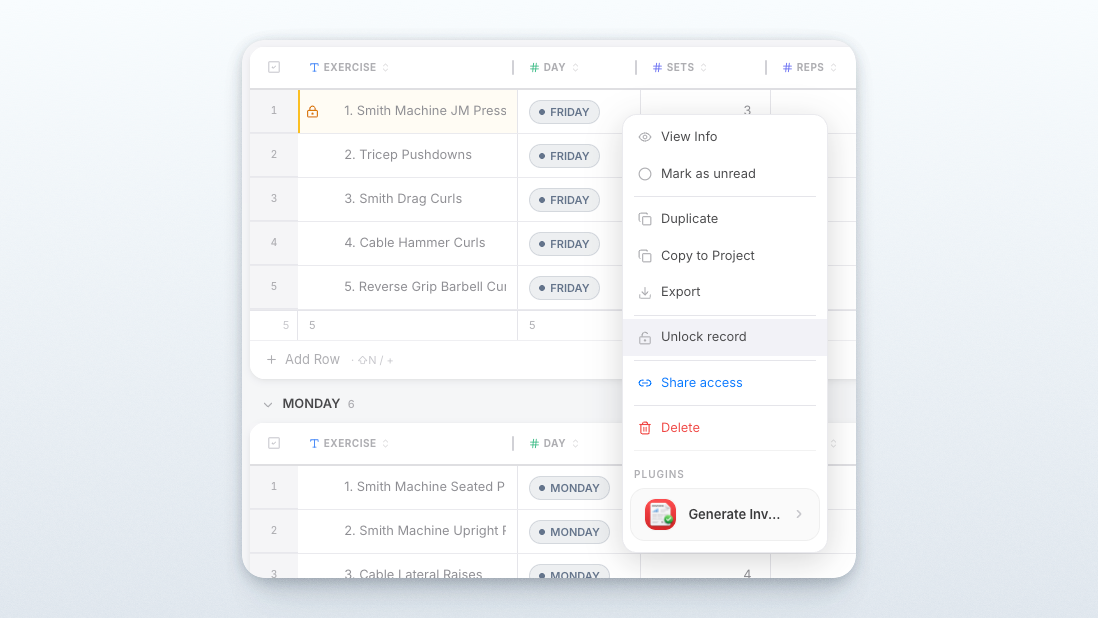
Project owners and admins can lock one record or many at once. While locked, other collaborators cannot edit fields, alter data, or add comments, and the composer is turned off. Locked records are clearly marked and stay protected across private and public sharing until an owner or admin unlocks them.
Aug 6
Share a whole project, exactly as you arranged it.
Create a public project link and the people you send it to see the same table layout you prepared, including its sorting and grouping. Viewers can look without changing anything, while editors get only the controls and fields you chose to allow. Signed-out visitors can preview the records, then Picrowd asks them to register before opening a row or downloading its files. Plugins stay unavailable to outside viewers and editors, keeping shared work focused on the project itself.
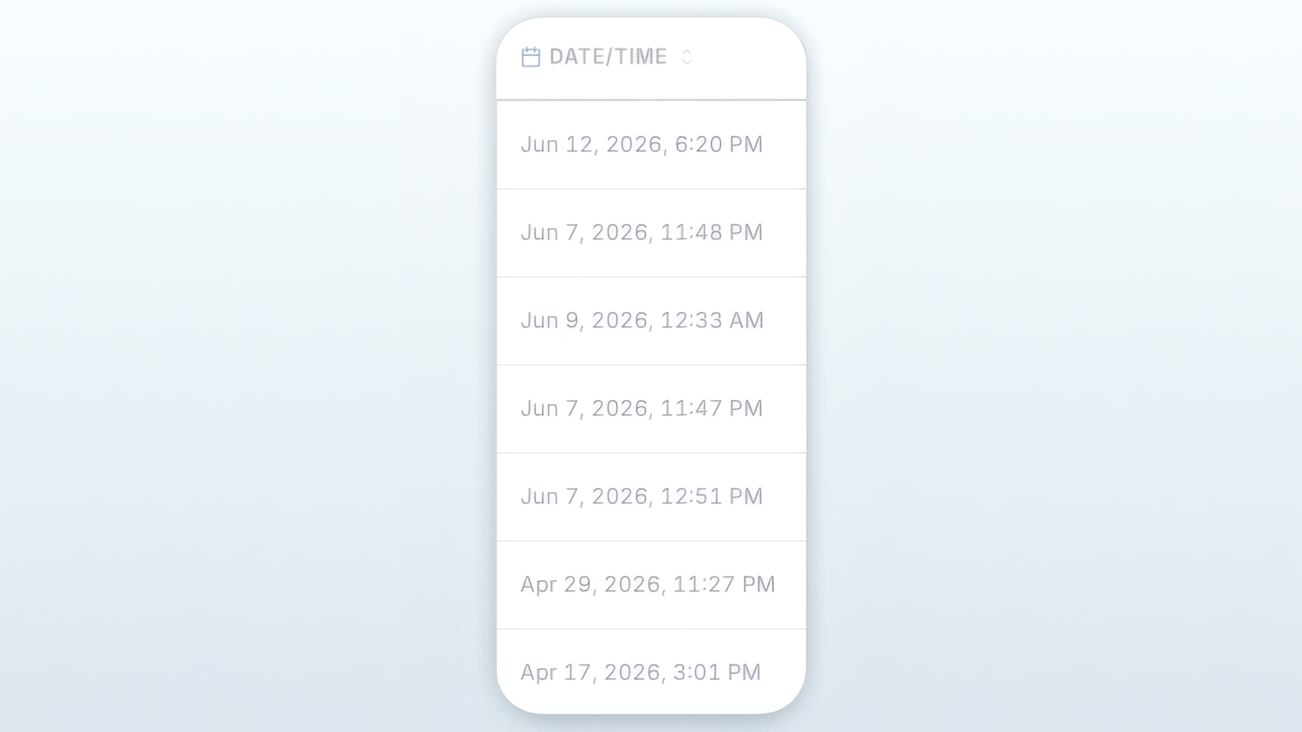
Sort records by the moment they last changed.
Every project now has a permanent Date/time column that records when each record was created and refreshes whenever its values or notes change. It starts hidden to keep existing tables tidy, can always be unhidden, and makes it easy to sort a project from the freshest activity to the oldest — or the other way around.
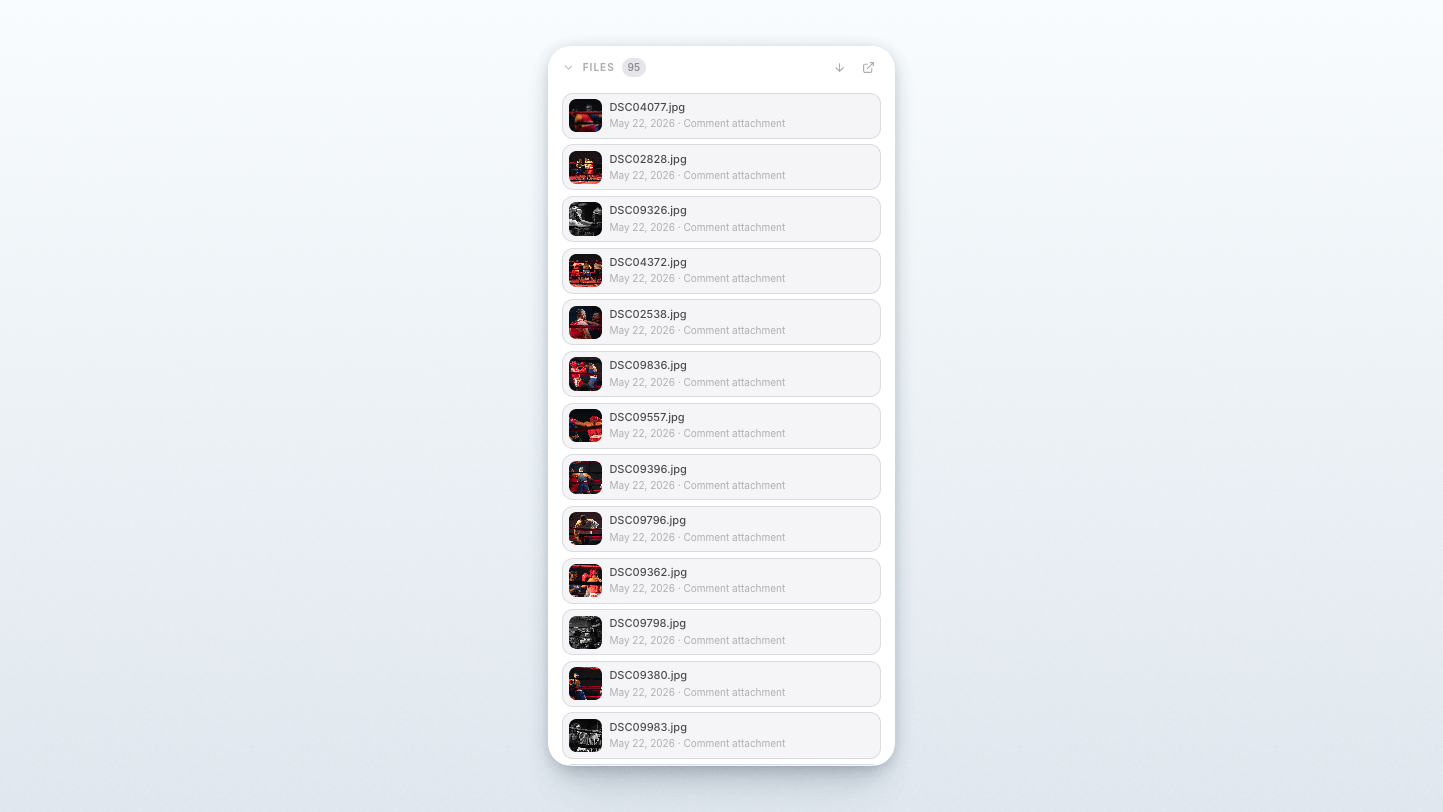
Every file in a record, gathered in one place.
Full record views now include a Files section with image thumbnails, familiar file cards, a total count, and newest- or oldest-first sorting. Hover any file for an immediate download, or open it normally for the right preview. The expanded file browser adds search and lets you switch between files from the current record and the entire project.
See when the latest comment includes more than words.
Last comment columns now show a small attachment thumbnail whenever that comment contains a file. If it contains several files, the thumbnail carries the total count, in both compact and wide rows, so important supporting material no longer hides behind the comment text.
Aug 5
Your unfinished message waits for you.
Start writing a note and get pulled away, close the panel, or quit Picrowd entirely, and your words are still there when you come back. Drafts are kept for every composer separately, so a half-written reply on one record never mixes with the one you started somewhere else. It works in records, replies, boards, Picrowd AI, and whiteboard comments.
Chat that reads like a chat.
Turn on Classic chat layout in Settings and your conversations flip to the shape you already know: the composer sits at the bottom of the window, your newest message right above it, and older ones climbing up. Sending a message always lifts the thread so you can see what you just sent, even while its images are still loading. Everything else stays exactly where it was, and one switch turns it back.
Jul 14
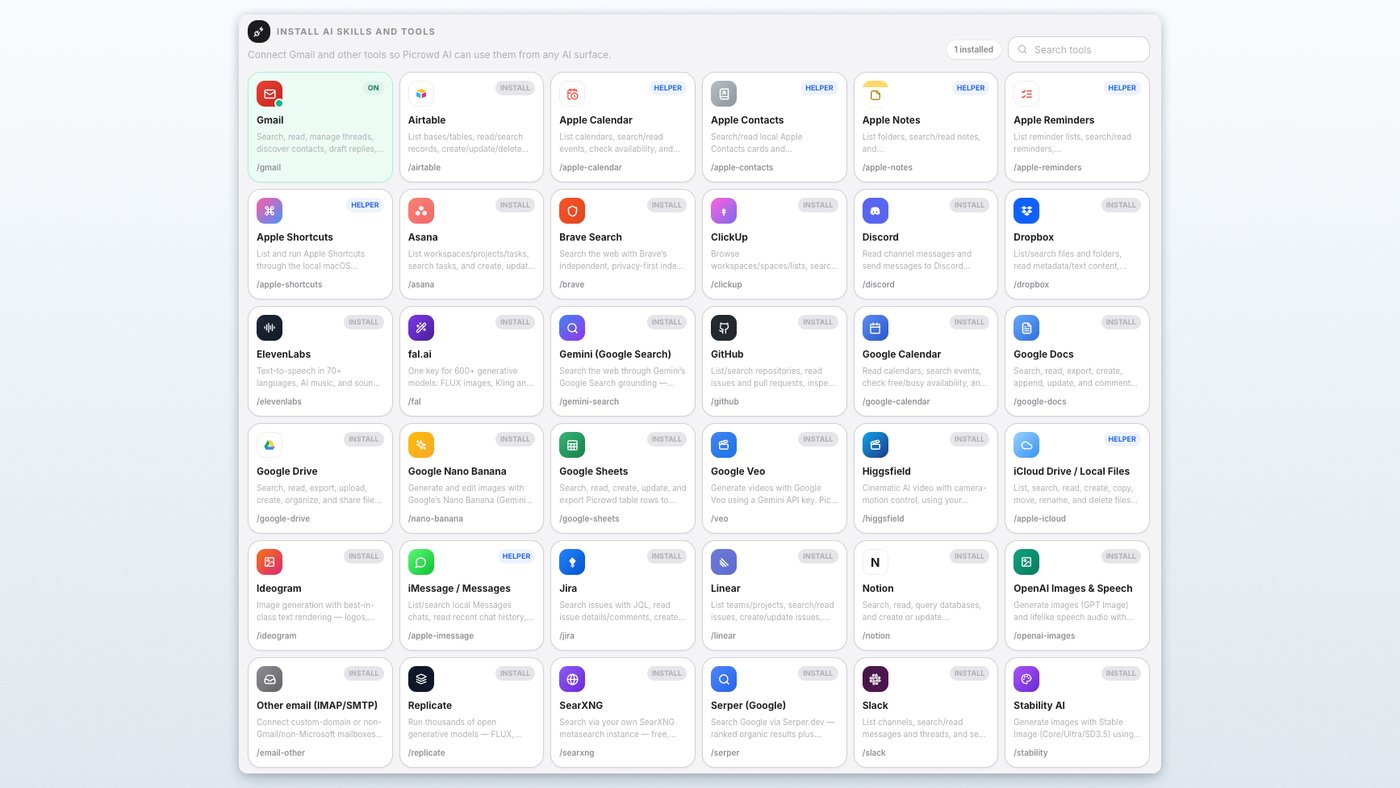
Your AI tools, on every workspace.
Your connected AI tools now sit at the bottom of every workspace — Table, Cards, and Board, not just Picrowd AI. Open the bar to see what is connected, or install and connect a new tool right where you are working, without switching away.
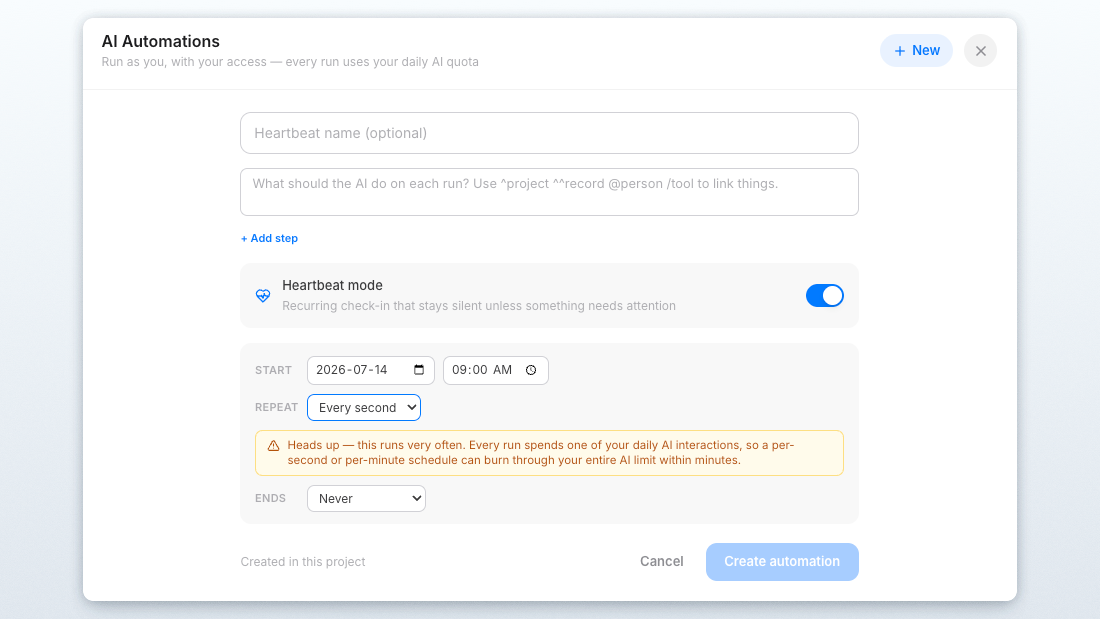
Automations on any schedule — down to the second.
Schedule Picrowd AI automations at whatever pace fits, from once a month to every minute, or even every second. Pick a ready-made cadence or set a custom one, and Picrowd warns you when a very frequent schedule is about to use up your daily AI limit. The automations window is roomier and easier to read, too.
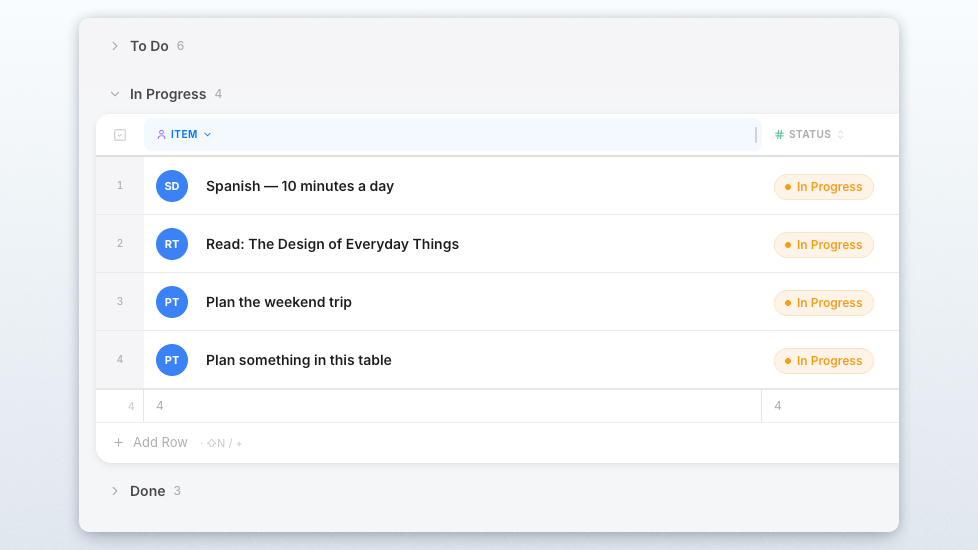
Grouped tables remember what is collapsed.
Collapse a subgroup in a grouped table and it stays collapsed — after a refresh, on your other devices, and inside your saved views. Your table looks the same everywhere you sign in.
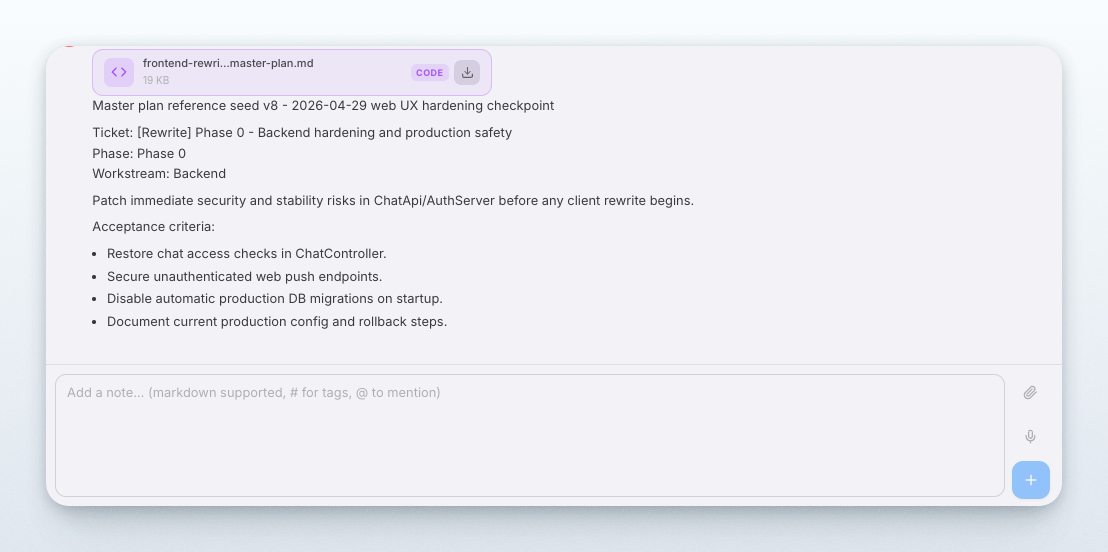
Reformat any note as clean markdown.
Right-click a note and choose "Format as markdown" — Picrowd AI tidies it into clean markdown, adding headings, bullet points, checklists, or tables where they fit, right in place and without changing your words. It works on notes, replies, board messages, and whiteboard comments, and a single Ctrl/Cmd+Z undoes it.
Jul 13
Use your Mac's Apple apps from Picrowd AI.
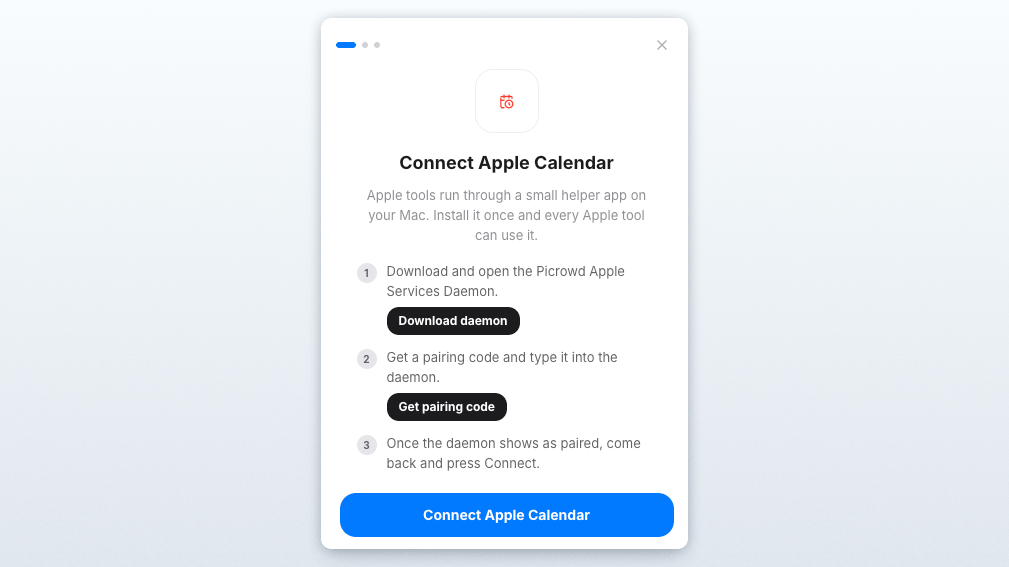
Install the free Picrowd Apple Services app on your Mac, pair it once with a short code, and choose exactly which apps to allow: Calendar, Reminders, Notes, Contacts, Messages, Shortcuts, and iCloud files. Then ask Picrowd AI to check your schedule, add a reminder, or pull a file, it works with your Mac directly, and a simple on/off switch keeps you in control of every service. Simple, secure.
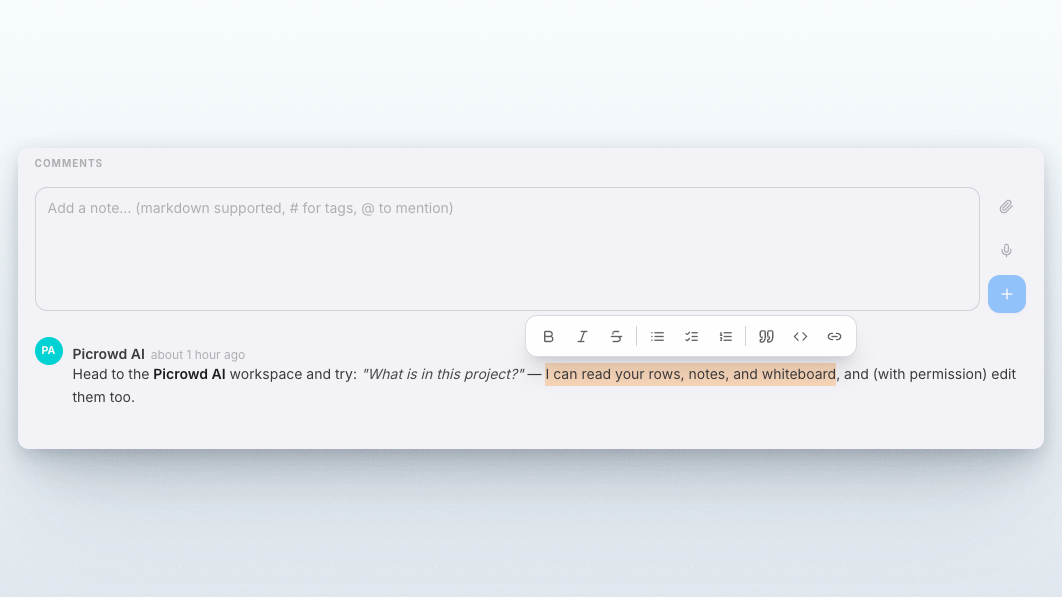
Format text right inside notes.
Select any text in a note and a formatting toolbar appears for bold, italic, and more. Without editing it. It works on mixed selections, and undo is supported everywhere, so it is easy to experiment.
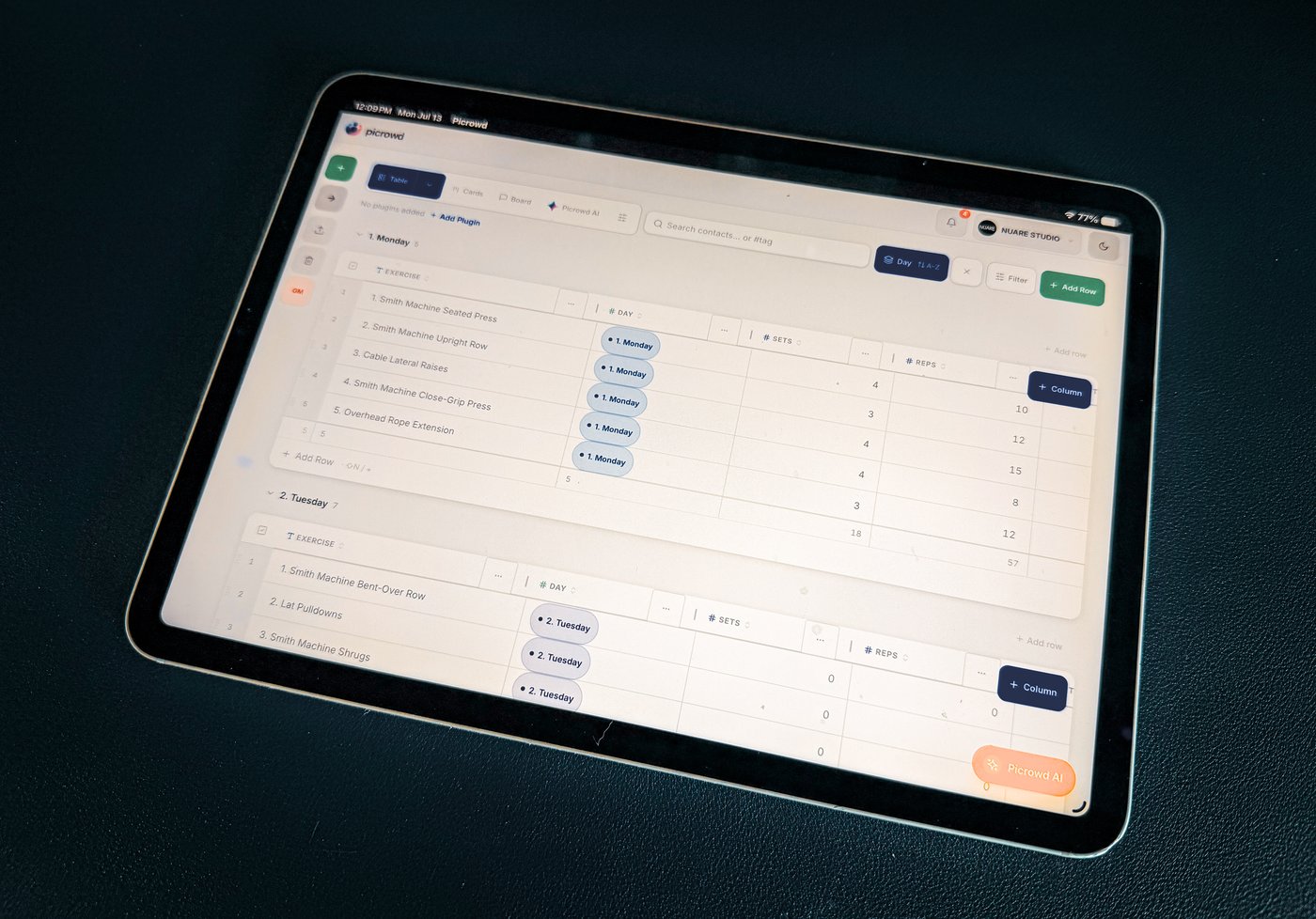
Projects on your phone, folders and all.
On smaller screens, projects now follow the same order as on desktop, folders are visible and can be collapsed, and every project has its own quick-actions menu.
Let Picrowd AI run on a schedule.
Set up automations that run Picrowd AI on their own — on a schedule you choose or when something happens. Tell it what to do once, and it works unattended in the background, keeping tasks moving and nudging you when there is something worth a look.
Jul 11
A guided welcome tour.
New to Picrowd? A friendly onboarding wizard and in-workspace tours now walk you through tables, boards, the Whiteboard, and Picrowd AI, so it is easier to find your way around from day one. Go through it - it's fun, or cancel it once and for all, no pressure.
Jul 8
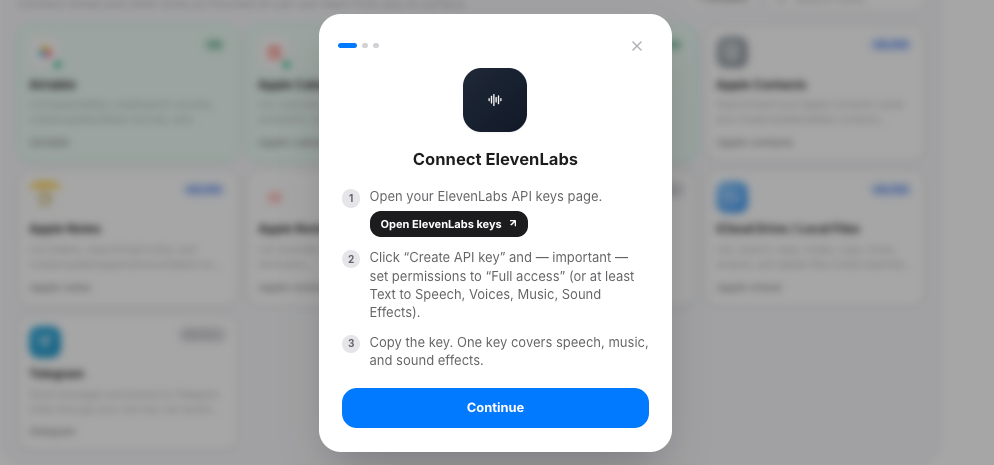
Generate images, video, and audio.
Picrowd AI can now create media through bring-your-own-key providers. Add your key once in AI Tools and generate right inside your workspace.
A faster, smarter Picrowd AI.
The AI agent received a major upgrade. Answers now stream in live as they are written, a plan checklist shows each step it is taking, and it can spin up focused helpers for bigger jobs, all noticeably quicker than before.
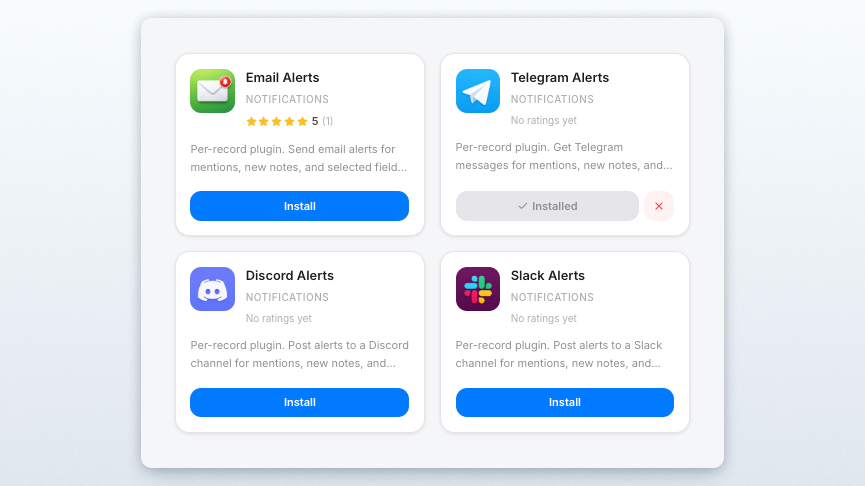
Alert Plugins: Slack, Discord, and Telegram
New alert plugins deliver record alerts straight to your team's channels, right alongside email.
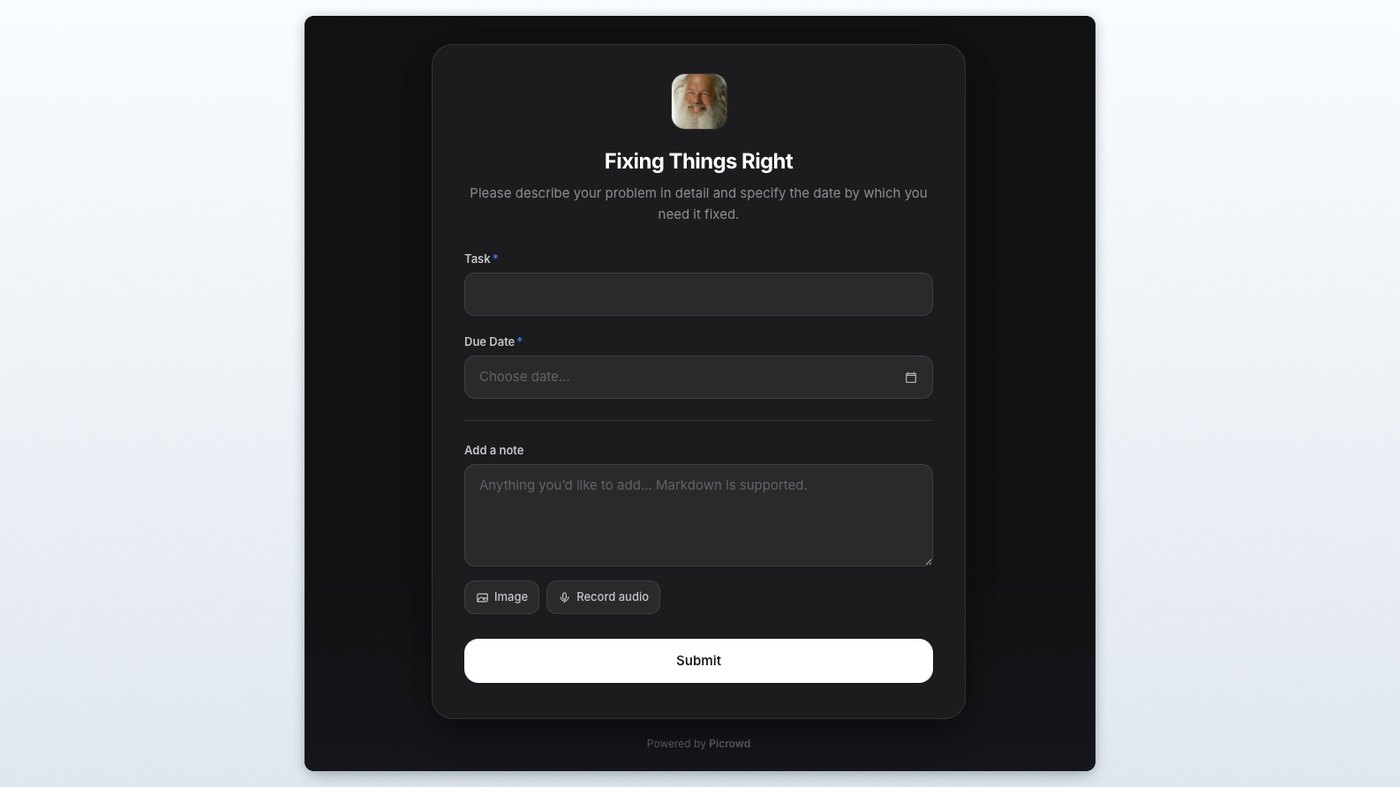
Intake Form Plugin.
Intake forms let others add records to your project without giving them any access. Need a contact form for your business for service requests? Use an Intake Form!
Daily Digest and scheduled AI Weekly Automations.
These new plugins arrived together. Daily Digest summarizes what changed in your projects, while AI Weekly runs scheduled automations to do what you ask.
Jul 7
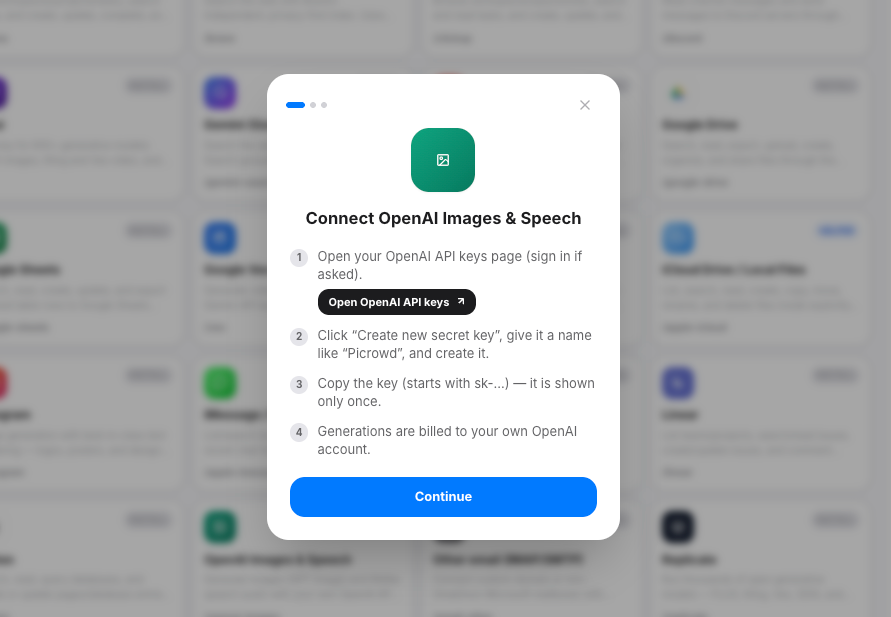
Installation Wizard for AI tools.
Connecting AI tools is now a clean, step-at-a-time wizard with per-tool branding and clear instructions, across the whole catalogue. Picrowd AI can even hand you a direct link to connect exactly what it needs.
Jul 6
Plugins got a cleaner, friendlier design.
Drive, Dropbox, Box, Email Alerts, and the Invoice generator all received an updated design: clearer settings, tidier controls, and far less clutter. Everything is easier to find and quicker to set up, so it is a great moment to give them a try.
Jun 9
Picrowd AI from anywhere.
A global AI access is now available across workspaces, so you can ask questions or hand off work without switching to the AI tab first. It's always with you in the bottom-right of your current workspace.
May 31
Right-click drag scrolling across workspaces.
Mouse users can right-click and drag to scroll through tables, kanban, Board, AI Board, side panels, info cards, and the project sidebar. Control unification, now every workspace feels the same.
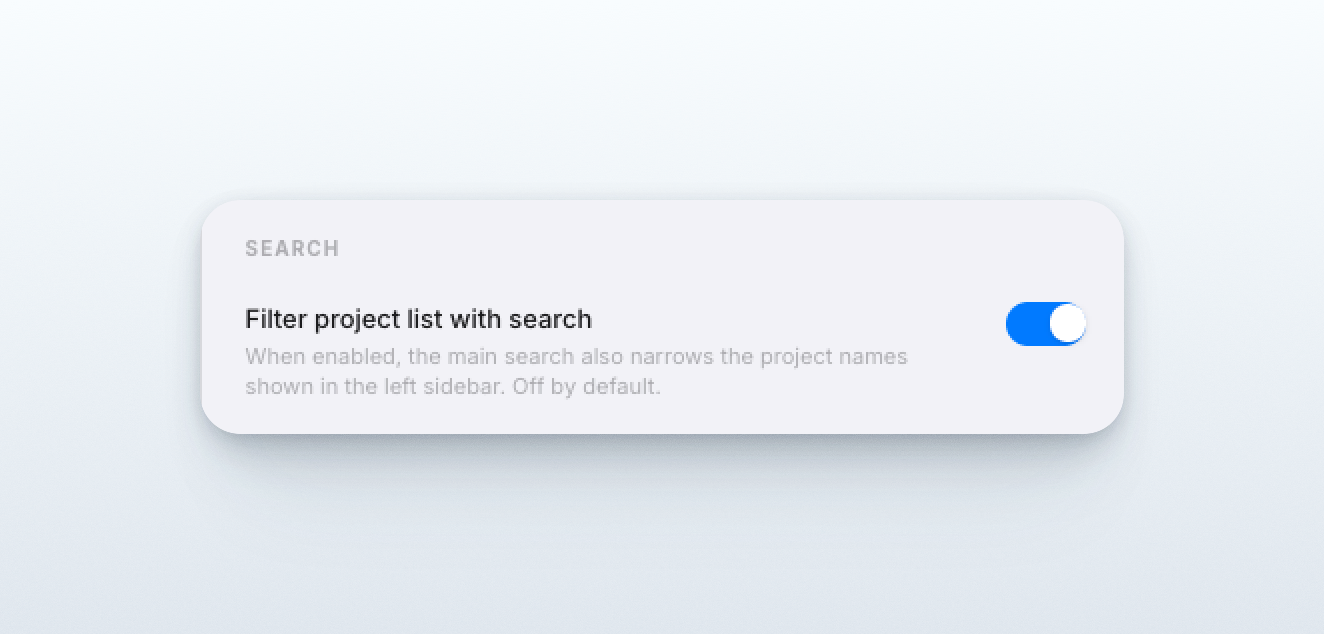
Optional project sidebar search.
The main search can now also narrow project names in the left sidebar. It is off by default and can be turned on in Settings -> Workspace.
May 29
Unified link previews and live embeds.
Links are now handled through a stronger preview system across Picrowd. All workspaces can show cleaner cards, thumbnails, provider metadata, and live embeds where supported.
Download selected Whiteboard items as a ZIP.
Select multiple Whiteboard items and download them together. Text, stickies, rich text, and URLs export as markdown files, while media exports as original files.
May 27
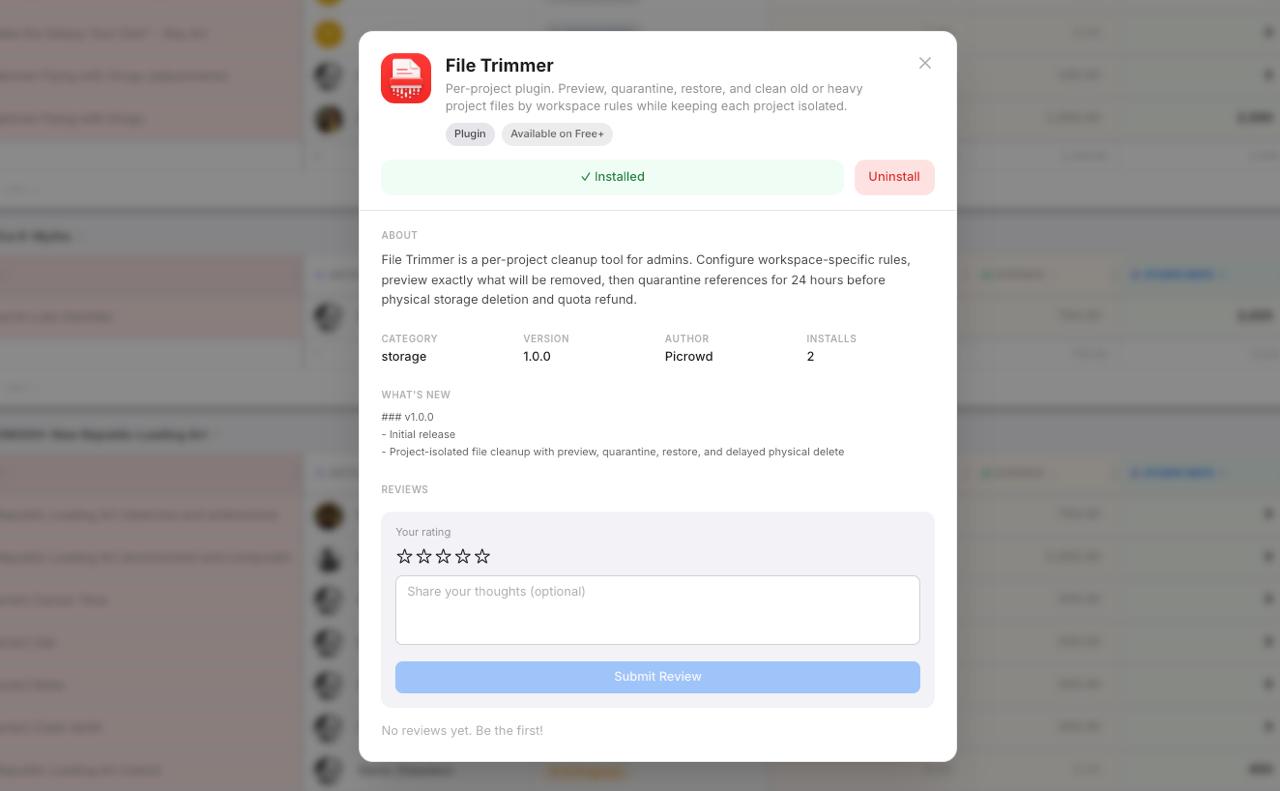
File Trimmer plugin.
A new owner-only plugin helps you clean up old and large project files. It supports source rules, age and size thresholds, and recent activity protection. You can preview changes before activation, run cleanups manually, view run history, and use quarantine and restore options. Use it to automatically remove outdated files and keep your storage in good shape.
May 26
Translate notes and conversations.
Picrowd can now translate notes, board posts, AI messages, and Whiteboard comments. Translations appear inline with options to show the original, change language, and set a default language.
May 18
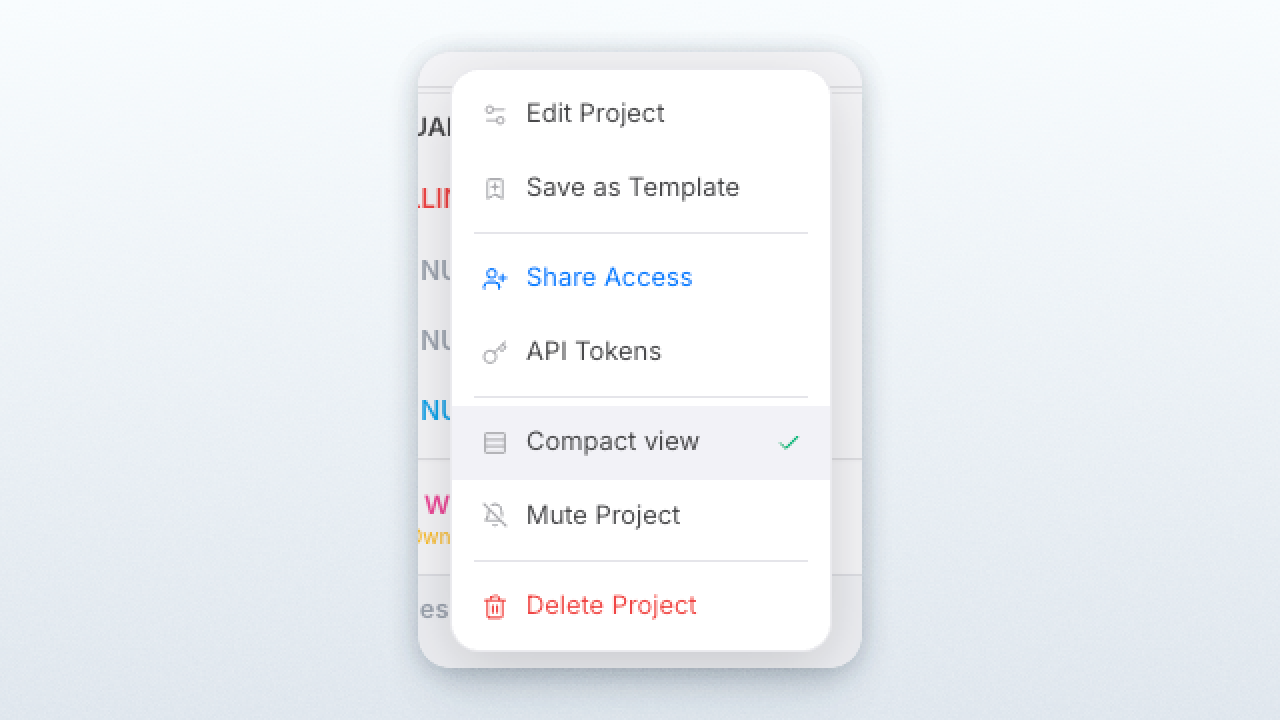
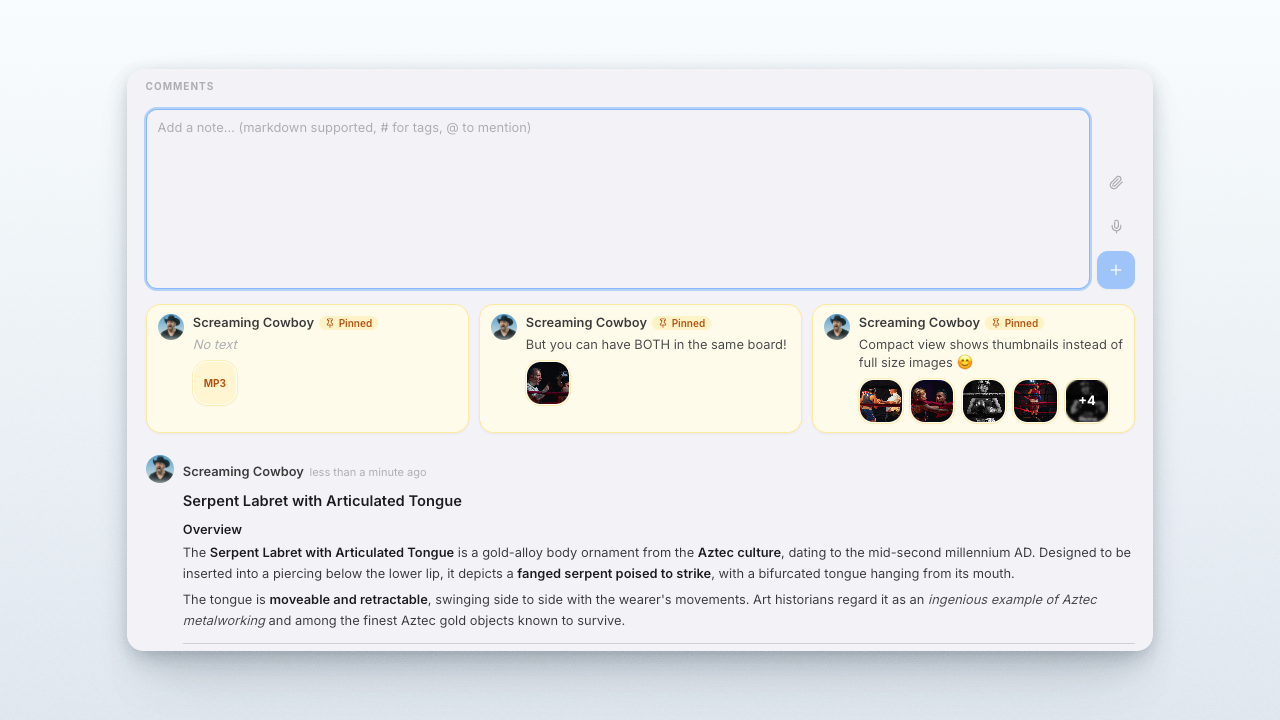
Compact view for notes and replies.
Notes in the records can now be switched to Compact view, making media-heavy discussions much easier to scan. Images become thumbnails, PDFs and files become smaller cards, and audio stays collapsed until needed.
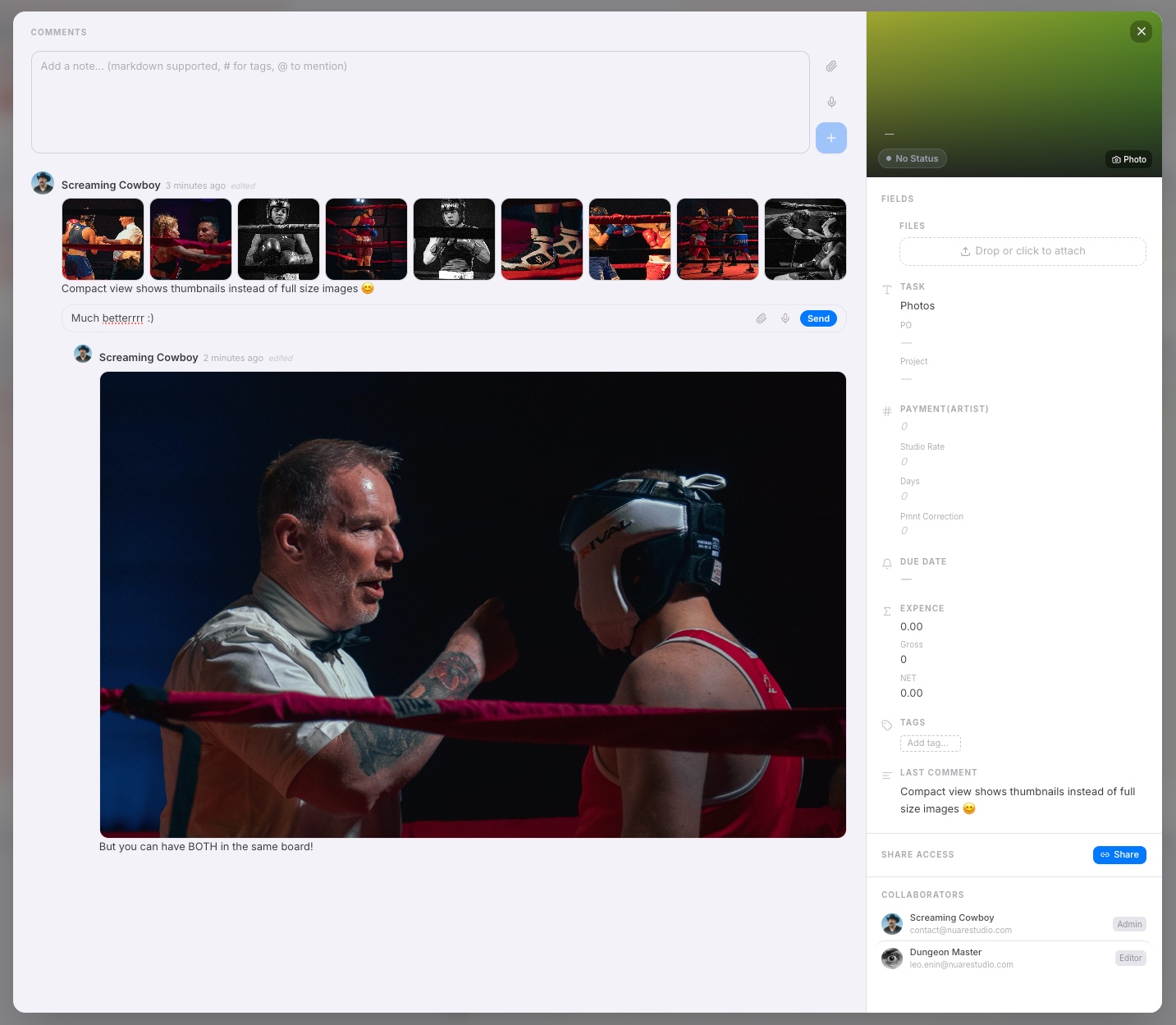
Default compact notes for new comments.
Projects can now choose whether new comments default to Compact view. Existing notes stay unchanged, so teams can make busy projects cleaner without rewriting old history.
Multiple pinned notes.
Picrowd now supports multiple pinned notes. They are now more useful for keeping important context linked and visible.
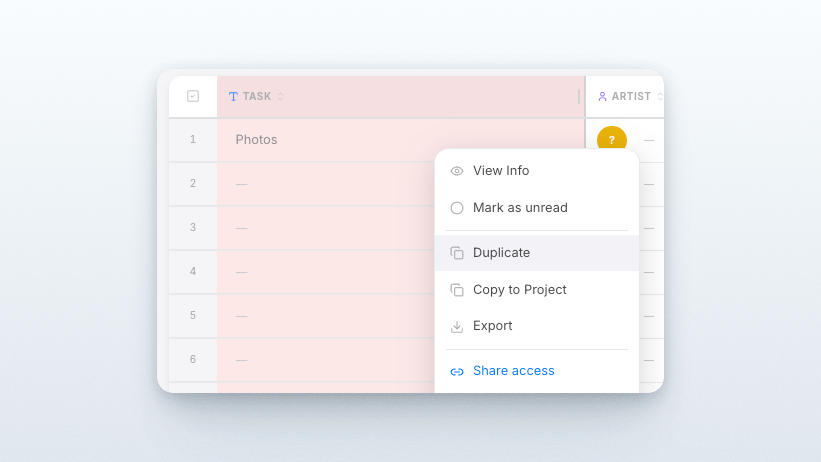
Record duplicate.
Any record can now be duplicated, with or without its notes and other data.
May 14
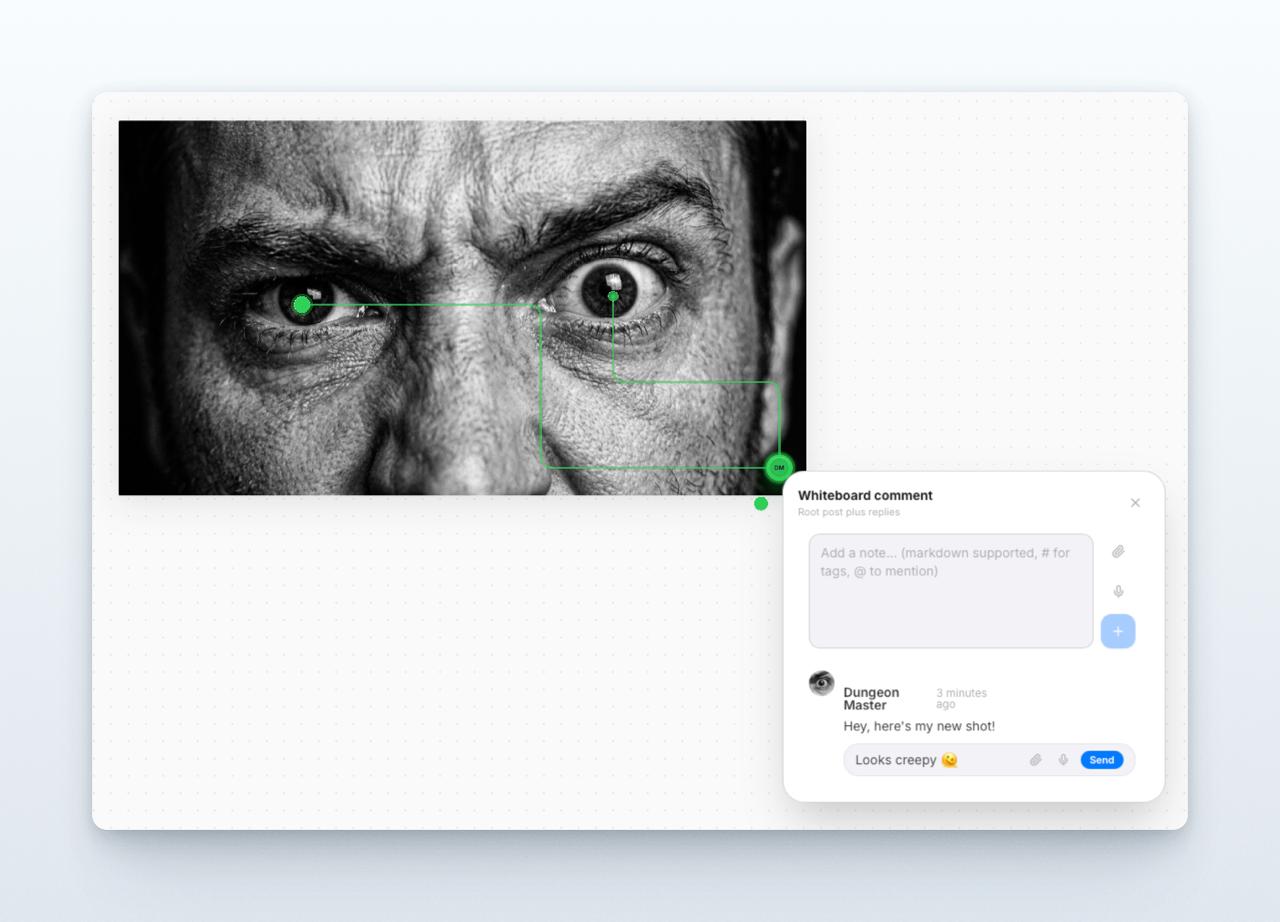
Comment pointers and styling.
Comment pins gained pointer lines, outline colors, better placement, unread badges, and notification routing. They can now be used as an actual review markup tool.
May 13
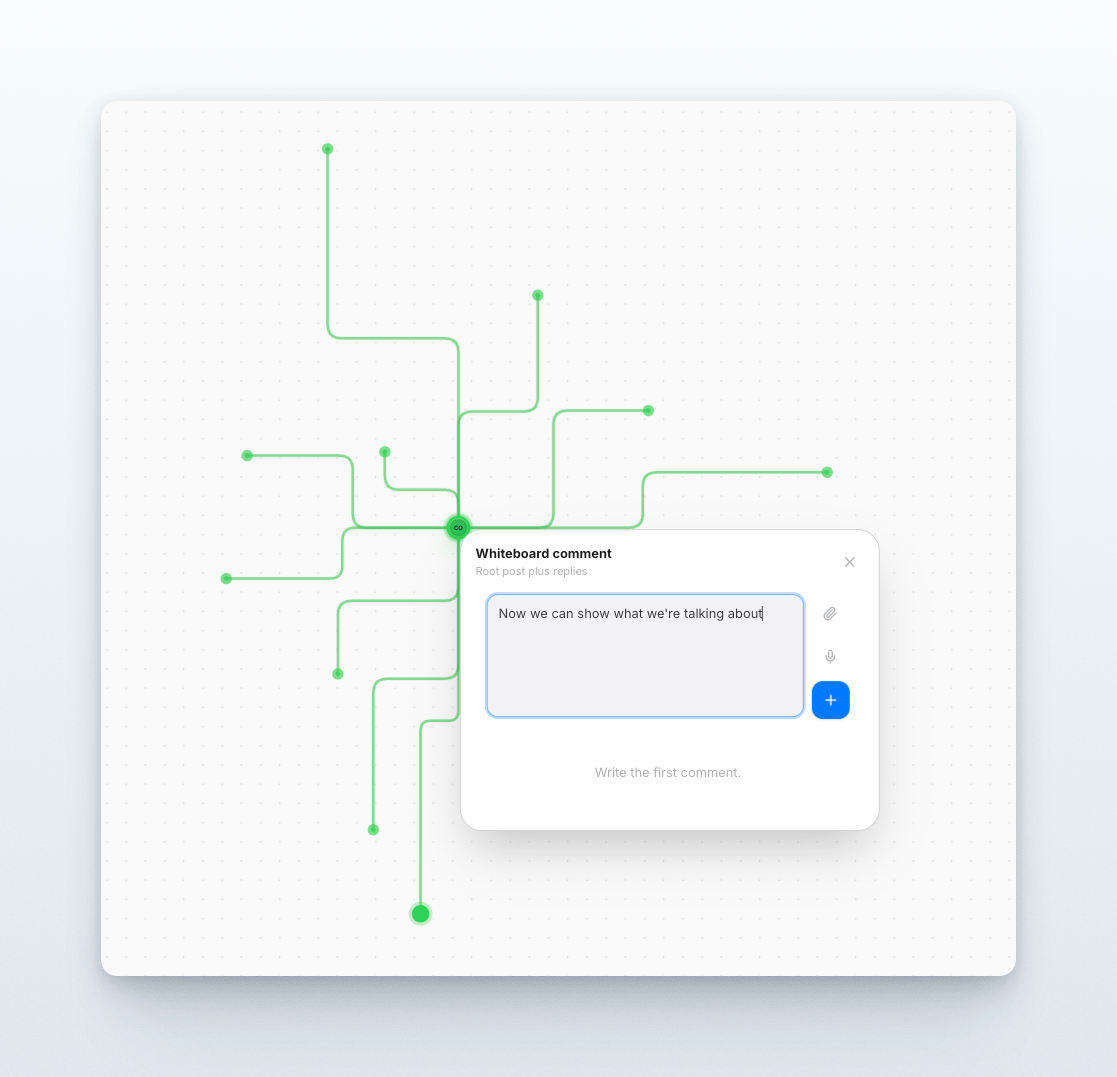
Whiteboard comment threads.
Whiteboard now supports comment threads directly on the canvas. Comments can be pinned to objects, shown as visual markers, opened from the board, get notifications, and update in real time.
May 12
Share a Whiteboard area.
You can share a bounded area of a Whiteboard instead of exposing the whole board. Shared areas can be linked to records and opened as isolated views. Just frame the elements, click "Share Access", and share it privately with your team inside the current project or publicly with anyone who has the link.
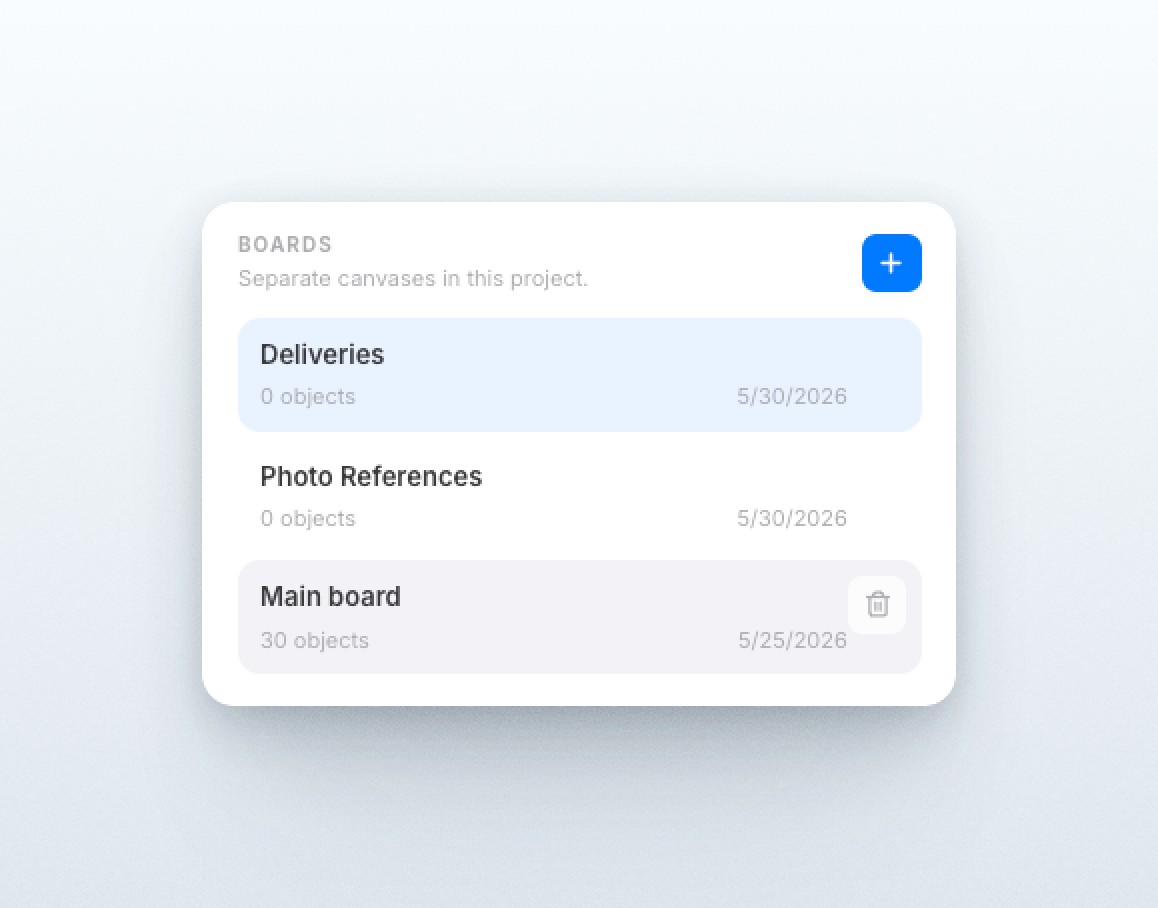
Multiple Whiteboard boards.
Projects can now have multiple Whiteboard boards.
May 5
Smart connectors.
Whiteboard connectors can attach between objects, use different line styles, keep endpoints anchored, and visually update as objects move.
Smart sort and auto-arrange.
Selected Whiteboard items can be sorted into cleaner layouts. This helps clean up messy canvases without manually dragging every object.
Straighten selected Whiteboard items.
Multi-selection controls and the context menu now include Straighten, useful when items drift slightly out of alignment.
May 2
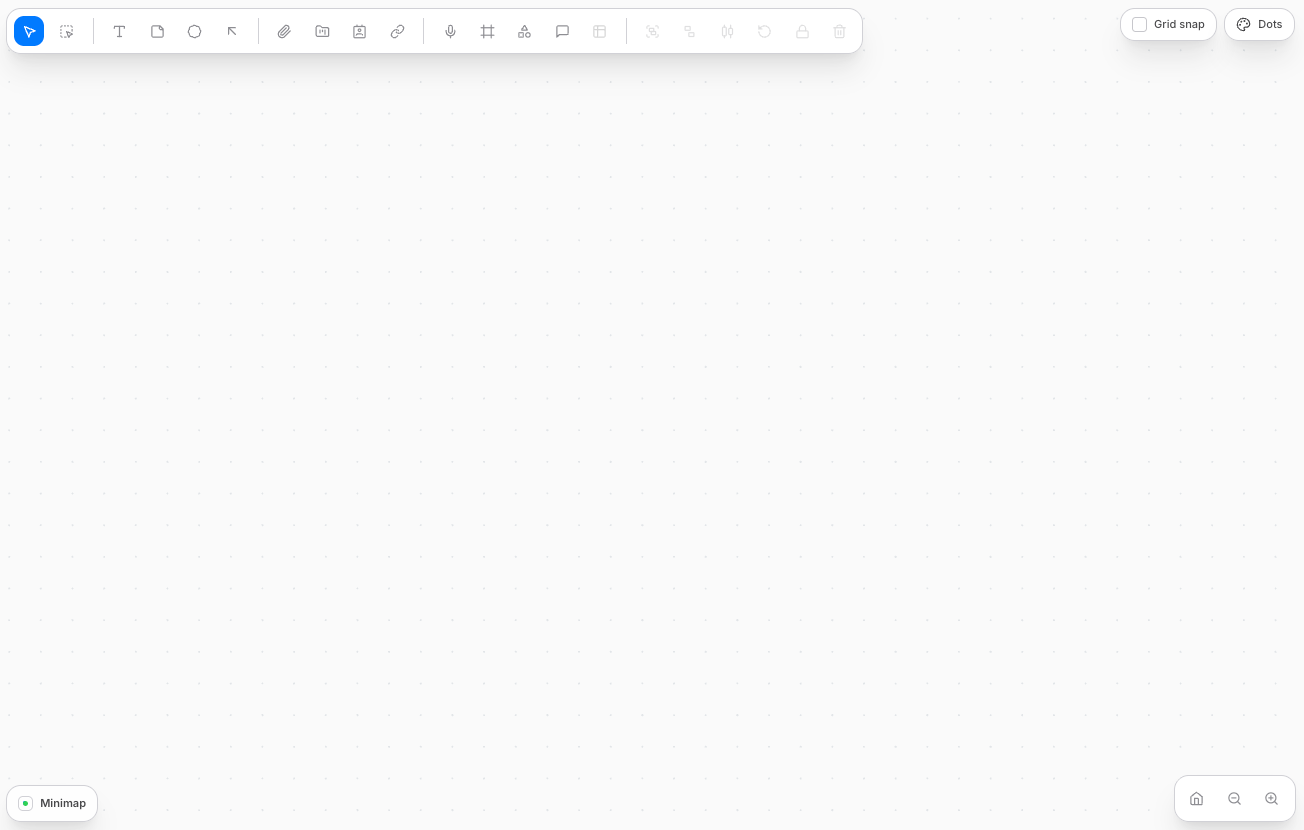
Whiteboard workspace.
Picrowd gained a full project Whiteboard workspace. It supports sticky notes, text, shapes, arrows, images, files, record cards, project cards, drag and drop uploads, selection tools, grouping, locking, undo/redo, pan and zoom, and persistent viewport position.
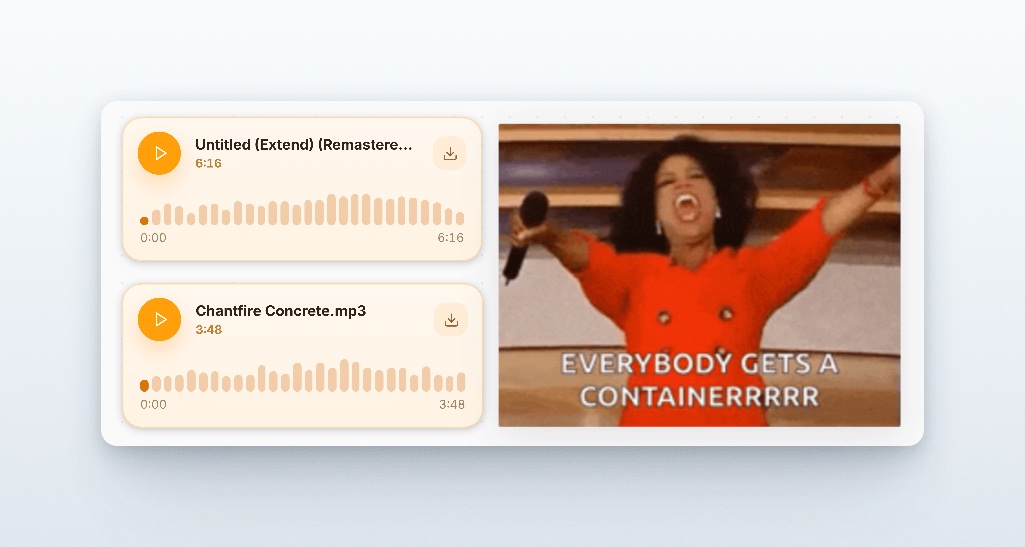
Interactive media on Whiteboard.
Audio and video files can be placed directly on the Whiteboard as cards, resized, moved, rotated, opened, and downloaded.
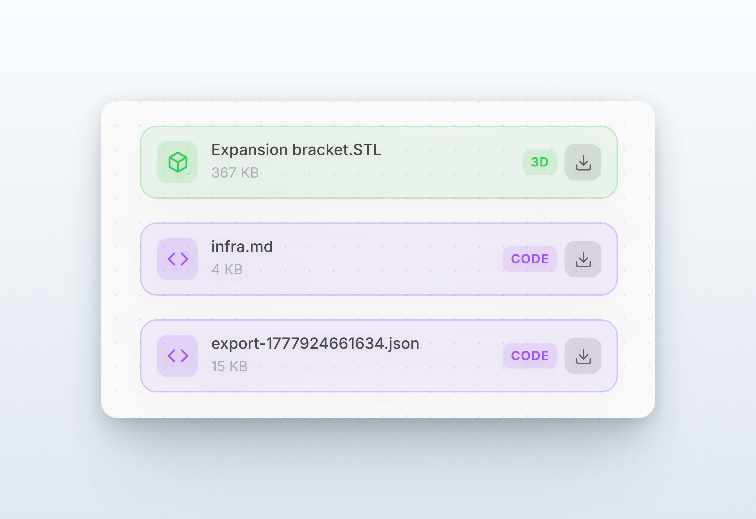
Whiteboard file cards.
Files on the canvas render as real interactive cards instead of raw links. This makes the board usable for moodboards, references, specs, and mixed media planning.
May 1
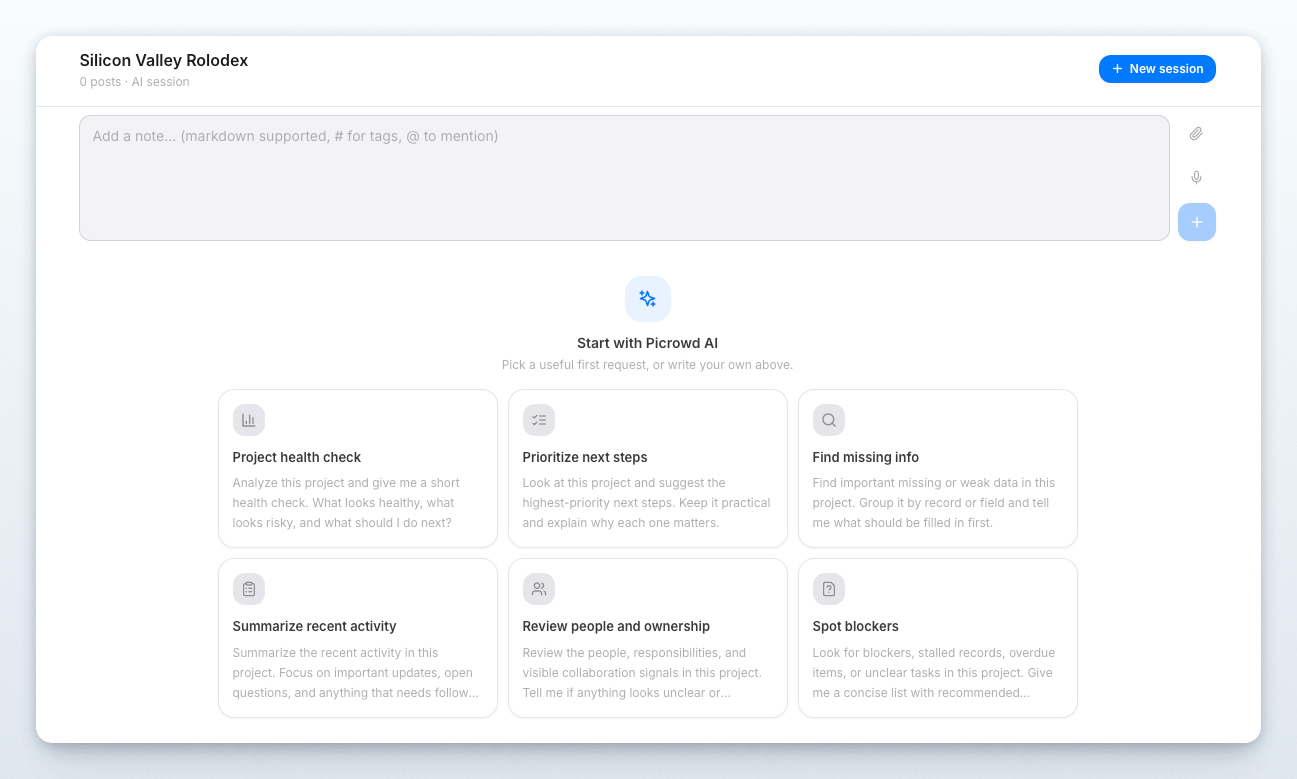
Welcome Picrowd AI!
There is now a dedicated AI workspace with posts, replies, sessions, history, members, and tags. You can grant or restrict access to this workspace for your team and work together with your AI assistant.
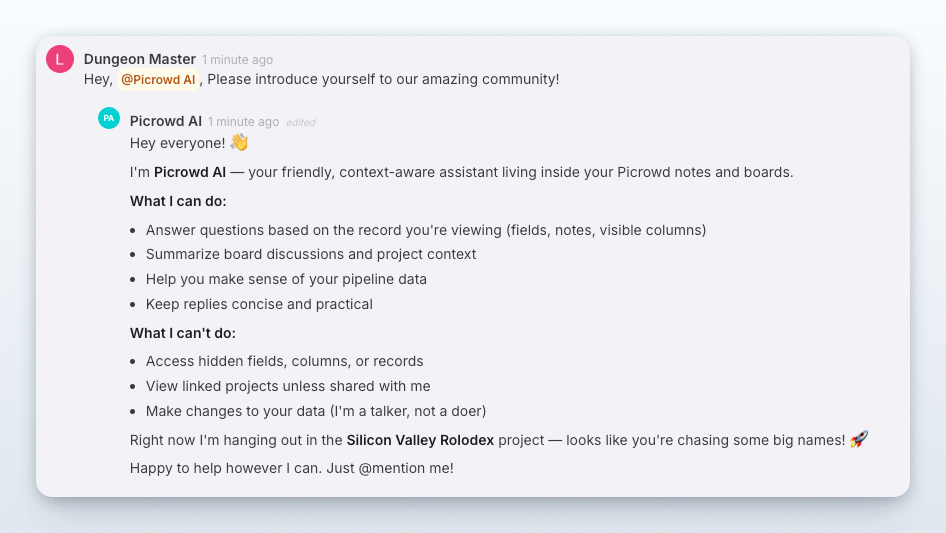
Picrowd AI is now available everywhere.
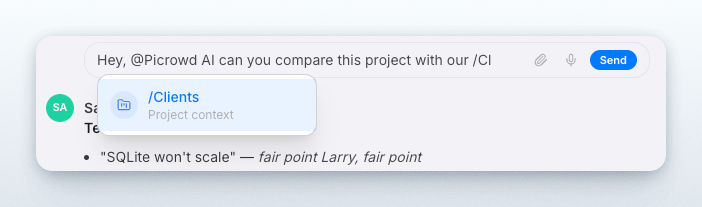
Mention @Picrowd AI in any message to ask questions directly in context. It knows your projects, records, notes, and everything else you might need.
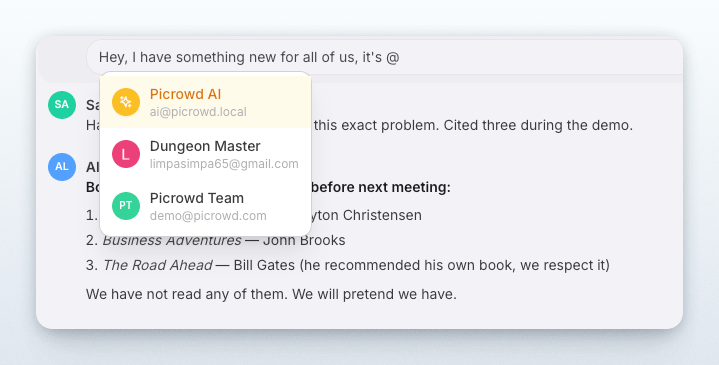
Project linking in messages.
Reference another project by typing /Project. Picrowd recognizes it as a project reference, displays it as a dropdown menu, and lets people open the referenced project quickly. You can also ask Picrowd AI to work with it directly.
Record linking in messages.
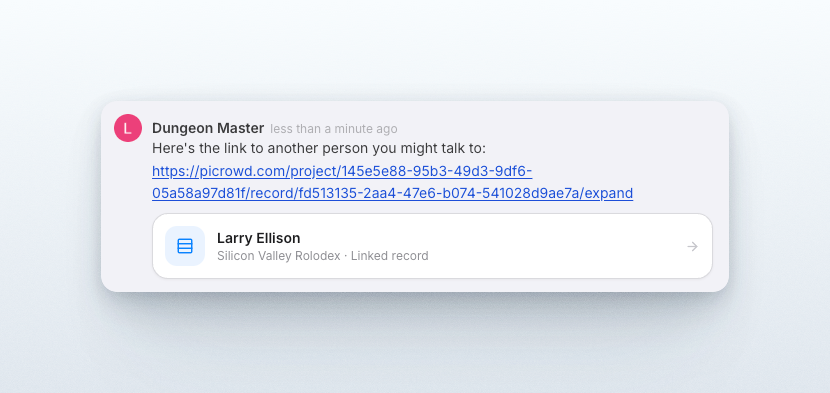
When you share a link to a record anywhere on Picrowd, it is recognized as an internal link and provides a cleaner interface for navigation. Share records with your team and crosslink them freely.
April 30
Workspace manager.
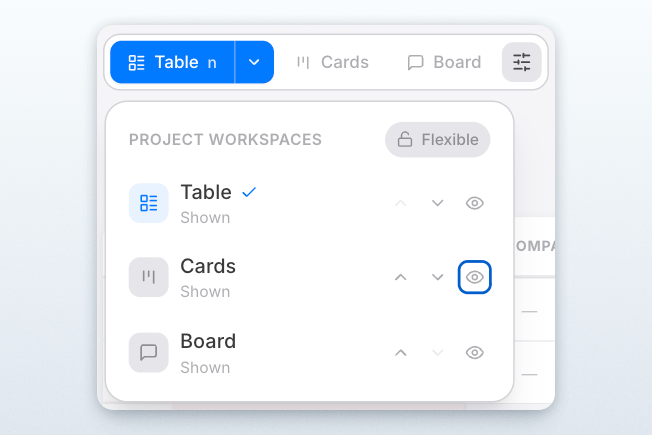
You can now choose which workspaces are visible in a project: Table, Cards, and Board. Hide what you do not need, reorder what stays, and shape the project around how your team actually works. Collaborators only see the workspaces you choose to show. More workspaces to come 🤫
Compact project rows.
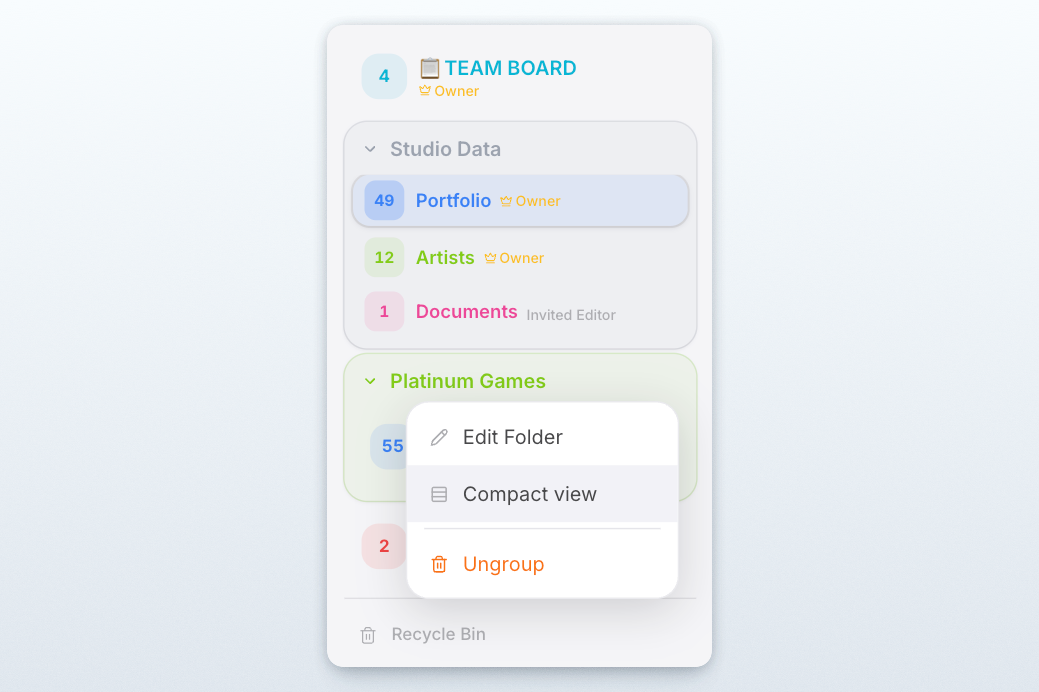
Projects in the sidebar can now be switched to Compact view. Use it on individual projects, or apply it to every project inside a folder. It keeps the important details visible, like record count, project name, role, and notifications, while taking up much less space.
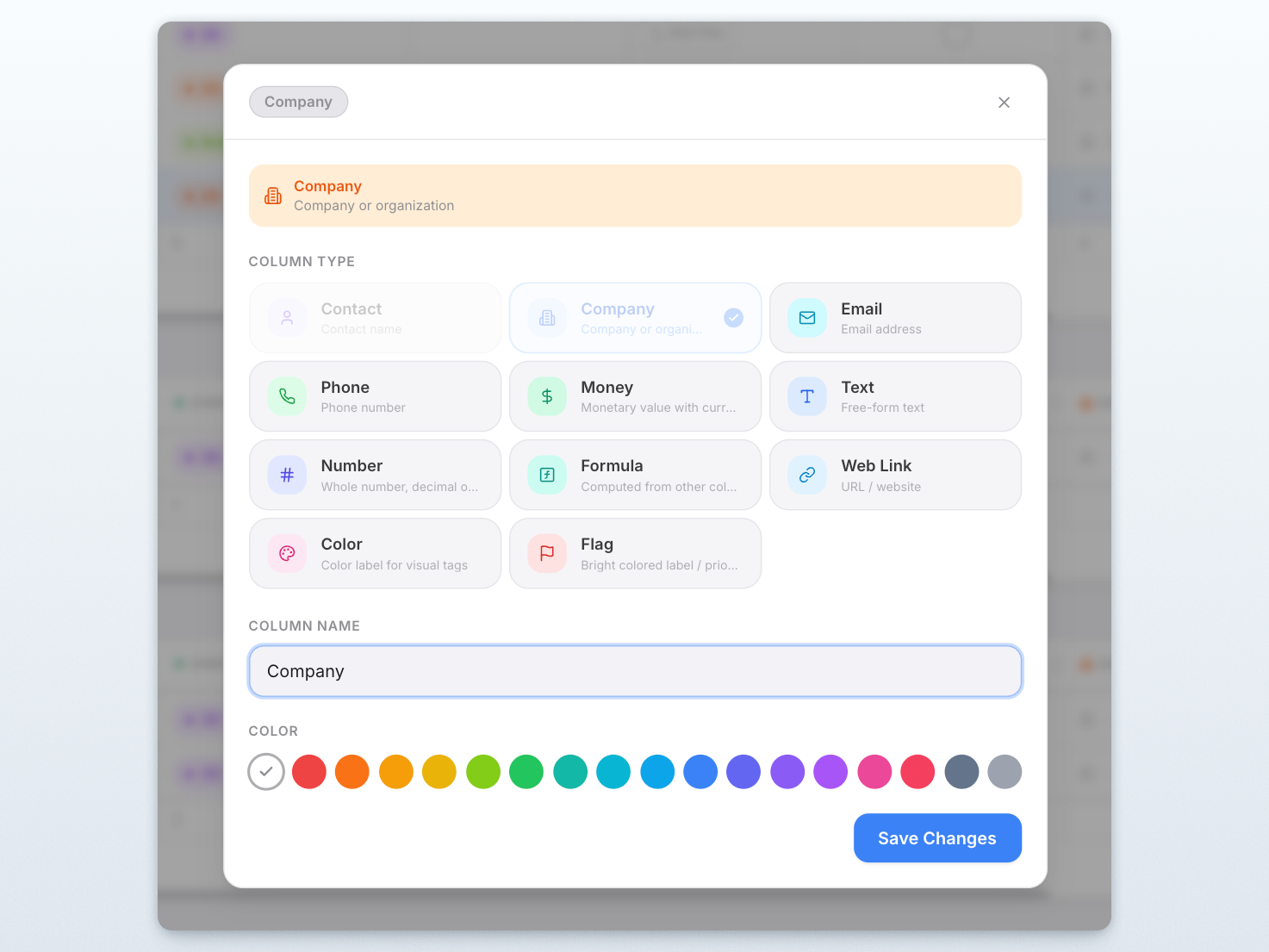
Column editor improvements.
The column editor is now roomier on desktop, with column types shown in three columns instead of two. We also improved column conversion logic, including safer handling for formula columns and stricter rules around filter columns.
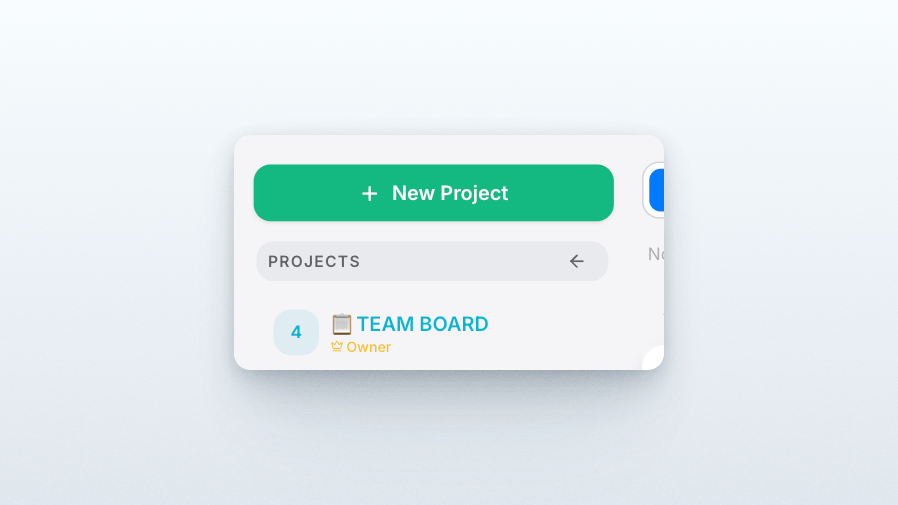
Improved sidebar collapse behavior.
The Projects header now works as a larger click target for collapsing the sidebar. A small thing, but it makes the interface feel less fussy when you want to clear space and focus.
API and backend improvements.
Several backend routes were tightened up for safer API behavior and better reliability. Less visible, but important.
Coming next.
Optional project workspaces through the + button, Calendar, Timeline, AI assistant, calendar integration, and standalone Boards and Chats outside of projects.
April 28
A cleaner Picrowd logo across the product.
Picrowd has a new app icon. It appears across the website, app header, login screens, invite pages, browser icons, and install metadata. It is lovely and looks exactly how we want our product to feel.
Markdown in notes and board posts fix.
Notes, replies, board posts, and board replies now handle richer markdown properly, including tables, task lists, code blocks, safe HTML, highlights, spoilers, images, and headings.
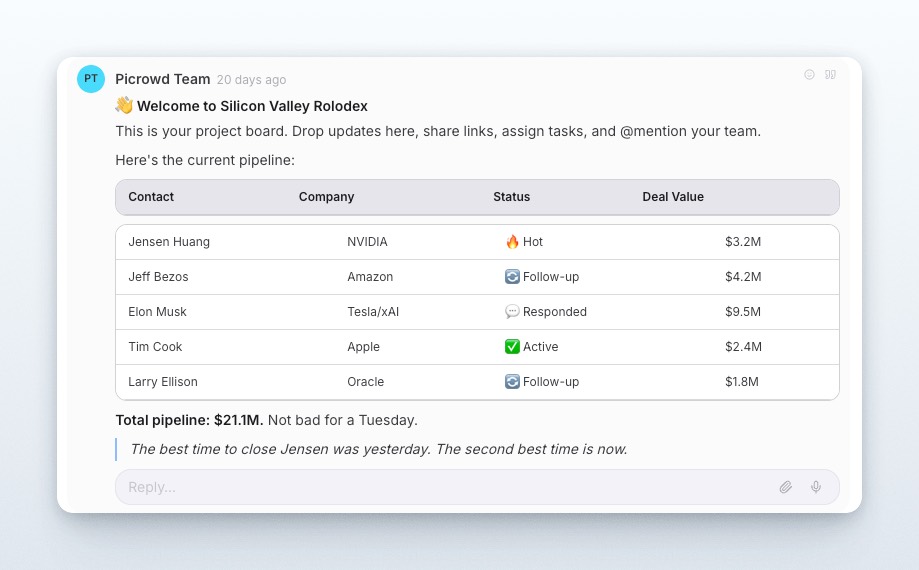
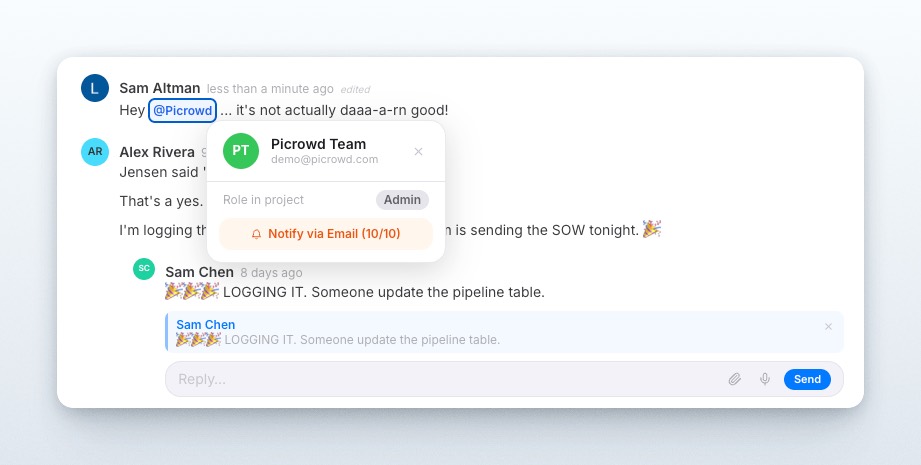
Improved Mentions.
Mentions became better and smarter. They're not shown if you mention someone who doesn't exist in your workspace anymore.
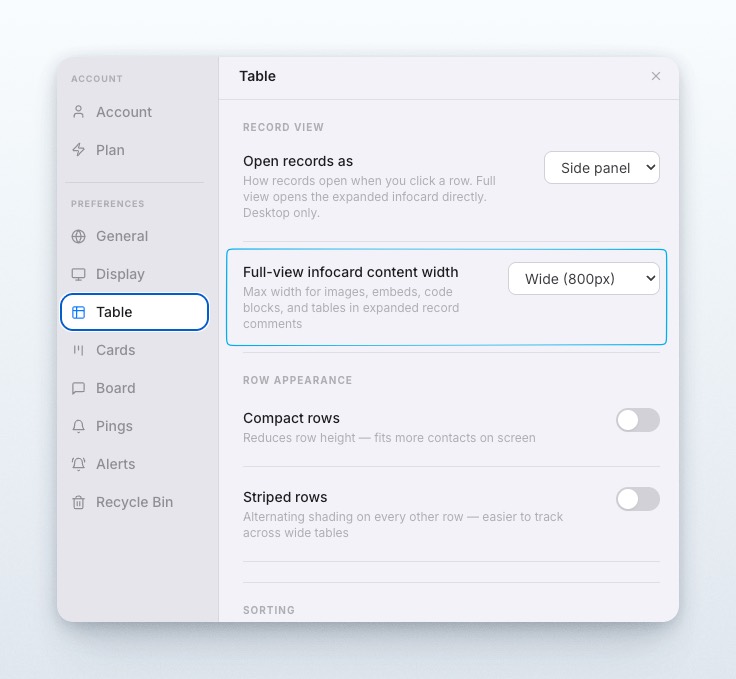
Board and Record Views are now separated.
Now you can set what you want to see and how it looks separately for boards and for records.
API improvements for people and companies.
Project tokens can resolve and manage person and company-backed fields more cleanly. That makes API workflows around Name and Company columns much more practical.
April 20
New public resource pages are live: What's New, Blog, and Wiki.
Picrowd now has a clearer public home for updates, product ideas, and reference material. People can look around before signing in, see what the product does, and get a better feel for how it could fit into everyday work.
April 15
Box Sync plugin.
Now you can send Picrowd note attachments to Box when that is already where a client or internal team keeps files. It is a simple way to fit Picrowd into an existing storage setup instead of asking everyone to change tools.
Quicker project search.
Start typing and results show up right away. That makes it much easier to jump to the right person, record, or note without digging through the project by hand.
Faster keyboard flow.
Use =, +, or Shift+N to create a row, then Shift+E to open it larger. If you spend a lot of time adding or reviewing records, this makes the whole flow feel lighter.
April 14
Sticky table headers.
When you scroll deep into a long table, the column names stay visible. That sounds small, but it saves a lot of friction when you are cleaning up data or reviewing a big list.
April 13
Dropbox Sync plugin.
Connect a project to Dropbox so shared files can follow the same storage path your team already uses. Useful if Picrowd is part of a client workflow, not the only place where files live.
Better plugin marketplace.
Plugin pages are easier to read, installs are clearer, and project setup takes less guessing. It is a cleaner way to explore extra tools without turning the product into a mess.
Read and Unread controls for records.
Mark something unread when you want to come back to it later, or clear it once it is handled. That gives you a simple personal follow-up system inside the workspace.
Mute projects.
Keep a noisy workspace around without letting every update pull your attention away from the project you are actually working on. Handy when some projects matter every day and others only matter occasionally.
April 8
Email Alerts plugin.
Set simple per-record rules and let Picrowd email you or a teammate when something important changes. Good for client work, approvals, or follow-ups that should not rely on someone remembering to check manually.
April 6
Google Drive Sync plugin.
Push project files toward Drive when that is where the client folder already lives. This makes Picrowd easier to plug into a real workflow instead of forcing everything into one storage habit.
Full markdown in notes, including tables.
Meeting notes, specs, and handoff docs can stay inside the record and still look structured. That is useful when you want the context attached to the work, not scattered across separate documents.
April 5
Plugin marketplace.
Browse add-ons in one place, install only what you need, and keep the main workspace cleaner. It gives Picrowd more room to grow without making the core product feel overloaded.
Invoice Generator plugin.
Build an invoice with a guided flow, preview it, and export a PDF without stitching the whole thing together by hand. Easy to try if your project work already lives in Picrowd and you want one less admin chore outside it.
March 30
Column type conversion.
Change a column into a different field type from the edit menu instead of rebuilding it from scratch. That is especially useful when a project evolves and the original structure no longer fits.
Person columns.
Link real people to records with names, titles, emails, and attachments. It is a much better way to keep contact context organized than stuffing everything into plain text fields.
Smarter import and export.
Bring spreadsheet data in with cleaner mapping, and export names in a more human-readable way. Good for teams that still move between structured sheets and real collaboration work.
Refreshed API docs.
Developers can now see the current endpoints, field model, and realtime behavior more clearly. If you want to connect Picrowd to an internal tool or an automation flow, this makes the starting point much less painful.
March 27
Mobile and tablet layout.
Picrowd works much better on smaller screens, so quick updates and reviews are not trapped on desktop anymore. Useful when you need to check something on the move instead of waiting to get back to a laptop.
More sign-in options.
Use magic links, Google, GitHub, or Apple. That makes invites easier because people can choose a login method they already trust instead of dealing with another password.
Folders.
Group projects in a way that matches how your business actually runs. This helps when you want to separate clients, departments, campaigns, or stages of work without making the sidebar chaotic.
Shared view settings.
Set up a useful view once and let collaborators see the same structure. That saves time and keeps the team aligned instead of everyone rebuilding the layout on their own.
Image editor.
Mark up screenshots with arrows, notes, and shapes right inside the workflow. Great for feedback, approvals, or explaining a problem without writing a wall of text.
Voice memos.
Leave a spoken update when typing would be slower or less clear. Handy for fast context, quick reactions, or situations where tone matters more than polished writing.
Ownership transfer.
Hand a project to another teammate cleanly when responsibility changes. That helps when work moves between people and you do not want the admin side to become awkward.
March 16
Richer file support.
Upload files, preview PDFs, play audio and video, and keep more of the real work inside one record. It is a practical improvement if your projects rely on a mix of media, not just text notes.
Expanded record view.
Open a record in a larger two-column layout when you need more room for notes, files, and details at the same time. Good for records that become the center of real ongoing work.
Realtime collaboration.
Boards and shared records update live, so people can work in parallel without constant refreshing or second-guessing. That is a big deal once a project gets active.
Reactions, drag and drop, and markdown.
Small features, but they make everyday collaboration feel less stiff. The product gets easier to use when basic interactions feel natural instead of heavy.
Grouping, filters, bulk assignment, and templates.
Once a project gets bigger, you need structure. These tools help turn a messy list into something the team can actually manage.
Notification center and browser push.
Picrowd can now surface important updates more actively. That helps when follow-up speed matters and you do not want to rely on memory alone.
March 9
Richer team board and chat.
Conversations started to feel like part of the work instead of a side channel. That matters when context gets lost every time the team has to jump between tools.
Smart hashtags and per-project statuses.
Each project can track work in its own way, and search gets more useful as tags build up. It gives teams more control without forcing one rigid structure on everything.
Light and dark theme.
Pick what feels better for long sessions. Simple, but people notice when a tool is easier on the eyes.
Secure, isolated collaboration.
Invite people project by project, or use API keys when access should be handled by automation instead of extra seats. That gives you more control over who sees what.
March 8
Projects, hashtags, filtering, and sorting.
This is the core structure for organizing people and work. It gives you a flexible way to shape a project around how your team actually thinks instead of forcing everything into a rigid template.
Table and Kanban views.
Switch between scanning a lot of detail and moving work across stages. Different jobs need different views, and this lets you work in the format that fits the moment.
Team board and richer cards.
Records started carrying more context, which makes collaboration less dependent on side messages. That is useful when you want the conversation and the work to stay close together.
API access for automation.
Plug Picrowd into an AI workflow or an internal tool and let it create, update, or monitor records for you. Good for repetitive work, system integrations, or any process that should not stay manual forever.